Photo Editing with AI
Inpainting with Stable Diffusion and FLUX
Generative image models like Stable Diffusion have become incredibly powerful in recent years.
The power of these image models however is not always easily accessible. That’s why I decided to build snapfiddle, a minimalistic image editor that runs in the browser and uses powerful models like Stable Diffusion and FLUX to edit various aspects of an image.
This article will guide you through the process of how I integrated inpainting with Stable Diffusion (SD) and FLUX to achieve common photo edits in snapfiddle.
Yes, that’s a crowded field, and I could have just used a commercial solution like Photoshop or Canva, or a free user interface like stable-diffusion-webui or ComfyUI. However, these options are either too expensive or too hard to use. I’d rather build my own tool and learn a bunch.
Introduction
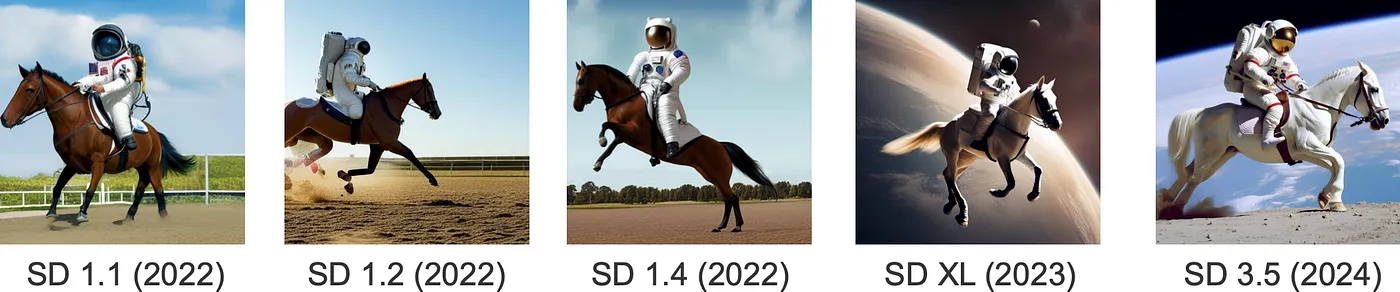
Stable Diffusion (SD) is a series of AI models that generate images from text. It was first released in 2022 and has come a pretty long way.
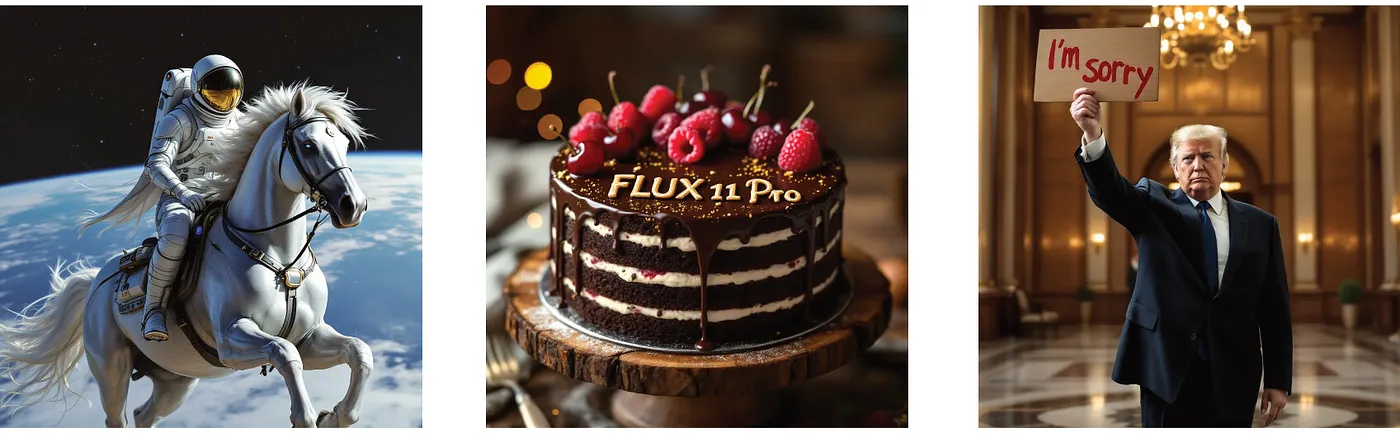
Along came FLUX, released in 2024 by the original authors of SD. FLUX quickly gained popularity due to the high quality of the images it generated. Notable improvements include more accurate text rendering and better human anatomy compared to SD.
Understanding Inpainting
Text-to-image is powerful but it can be challenging to express exactly what you want the image to look like in a text prompt. The generated image will almost never match the specific image you had in mind. The initial approach is to change the prompt a bit and see what happens, but this might very quickly escalate into an (expensive) hour-long session of trial and error.
This is where inpainting comes in. Inpainting allows you to keep the parts of the image you like and change the other parts. This could involve changing the color or identity of objects in the image for example.
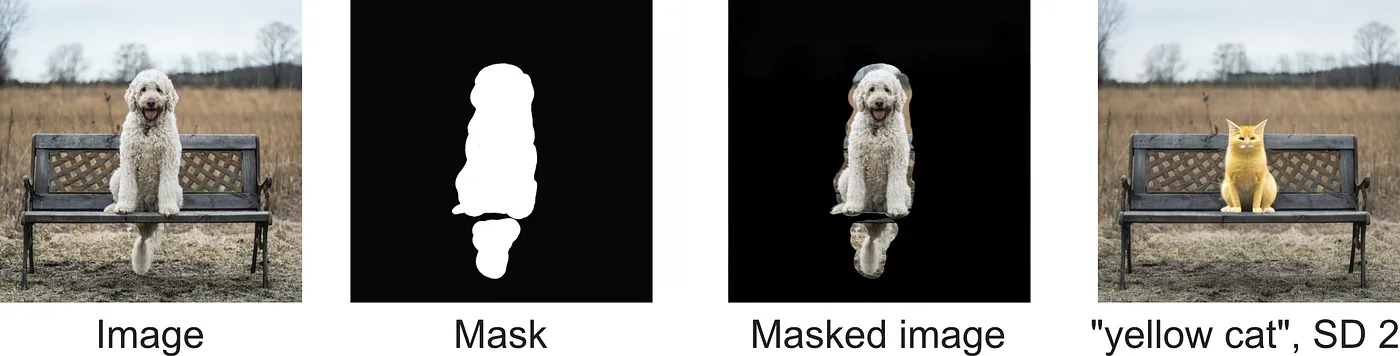
The idea is to provide the model with a mask indicating which areas you want to inpaint, along with a text prompt describing what you want to see.
Inpainting for photo editing
The example of the dog on a bench is fun, but it’s not the typical use case for inpainting. I spent a lot of time on r/PhotoshopRequest, a subreddit where people request photo edits and the “wizards” fulfill them. This helped me understand what the typical edits are.
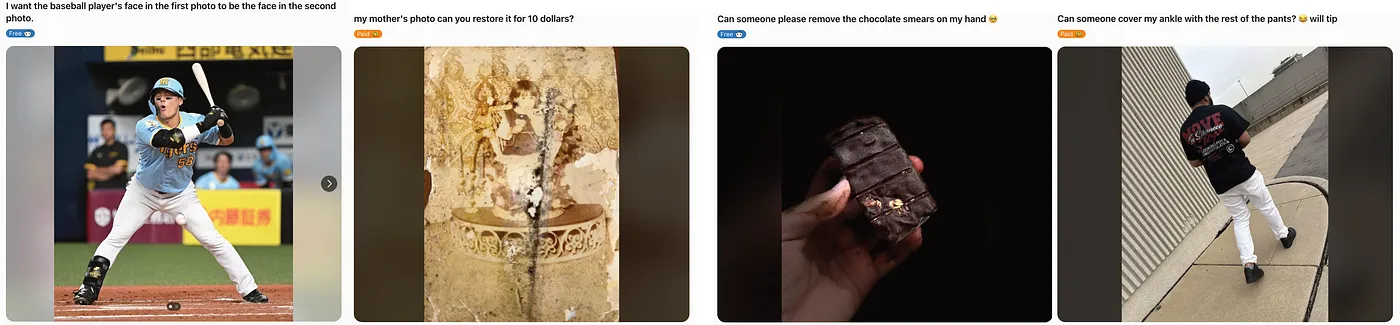
Many requests on r/PhotoshopRequest revolve around removing or exchanging details of an image, such as:
- Fixing defects in old photos
- Removing objects or people
- Cleaning up dirt
- Making someone smile or open their eyes
Other requests involve edits that affect large areas of an image, such as:
- Removing the background
- Replacing the sky
- Unblurring a snapshot
The remainder of this article will focus on one specific use case of inpainting: combining two images in a seamless fashion.
Face swapping
We will focus on a common challenge when working with photo edits: polishing a rough merge of two images, i.e. making the borders between the original and your insert seamless. This is particularly useful for tasks like face swapping for example, where the goal is to integrate a new face into an existing image without any noticeable transitions.
Let’s illustrate this process by swapping the face of the baseball player (from the PhotoshopRequest above) with the face of Donald Trump using inpainting.
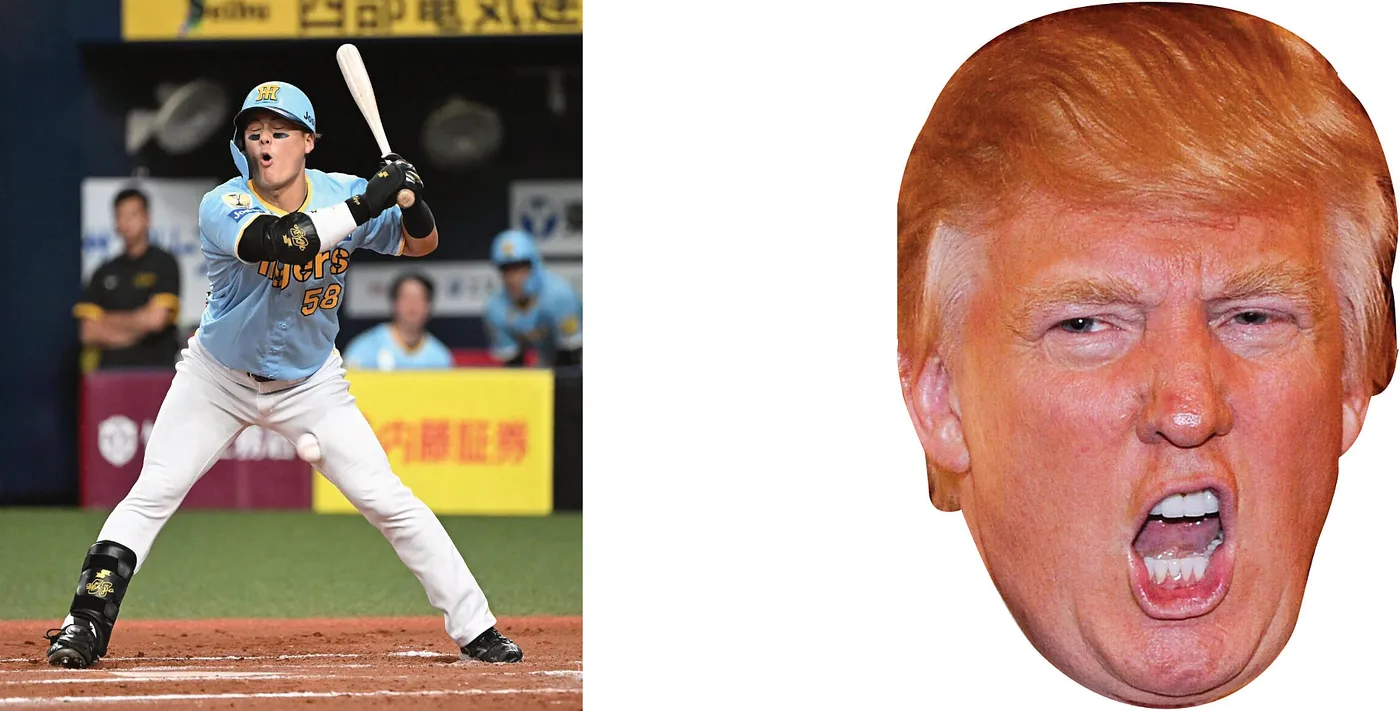
Step 1: Preparing the rough edit
As a first step, we transform the new face in orientation, size and borders to roughly match the target region. We match the orientation of the original one by flipping the image horizontally. Then, resize it so that the positions of the eyes, nose, and mouth roughly match. Finally, crop the portions of the face you want to see under the helmet. These operations are simple and can probably be done in Microsoft Paint.
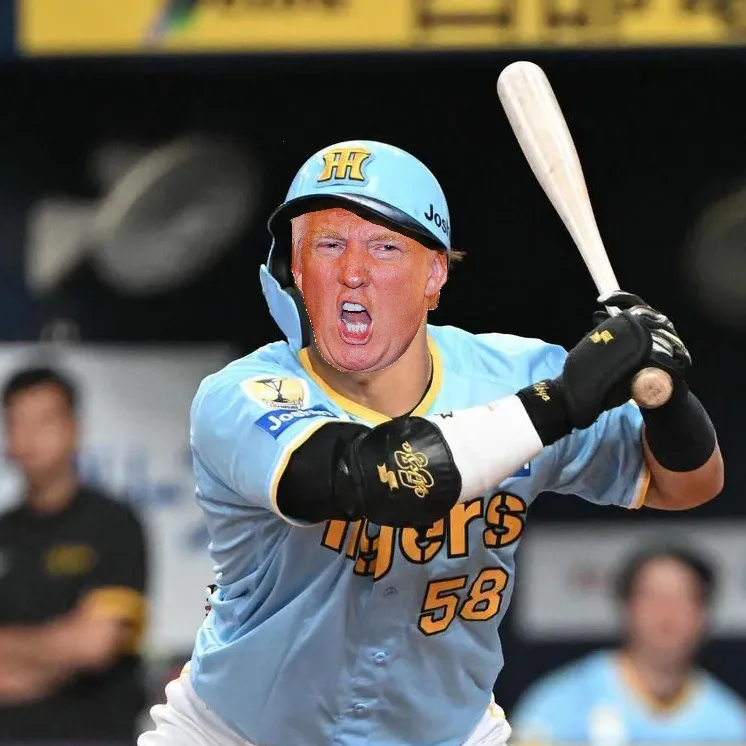
Step 2: Masking
The next step is to decide which parts of the image should be inpainted and which parts should be masked.
In principle, we would simply select the border of the transition from the old to the new face. However, in this specific case, the skin tone of the new face would not harmonize well with the existing neck. Therefore, we will include the neck in our inpainting mask to ensure a seamless transition.
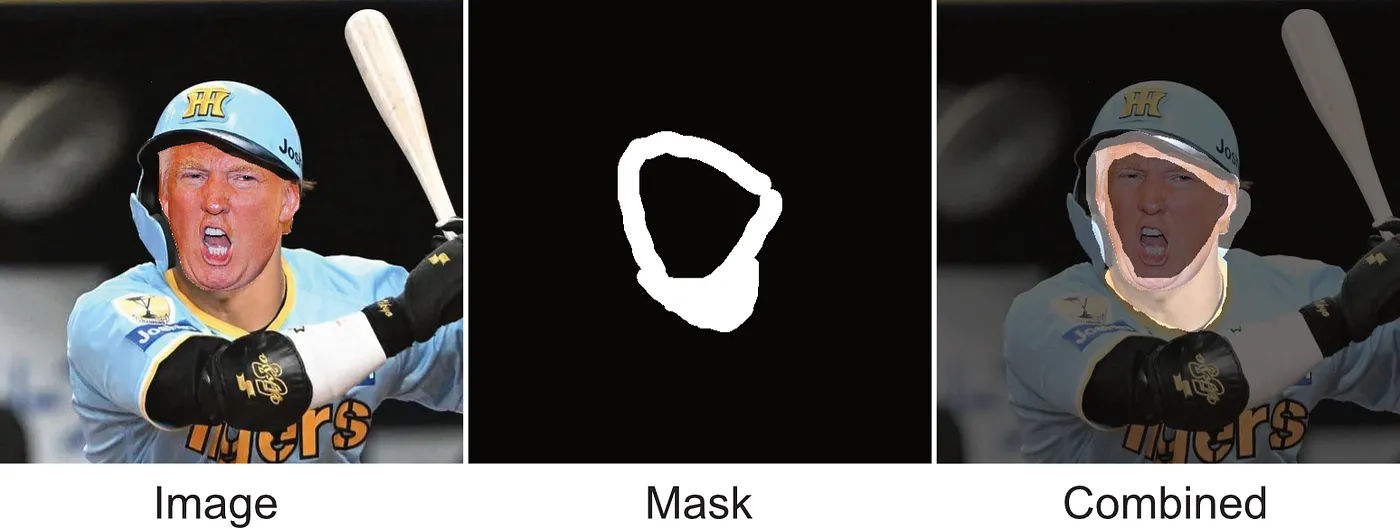
Step 3: Choosing the Right Model
Lots of AI models offer inpainting. I was looking for the model which offers the best tradeoff in terms of quality, speed and costs.
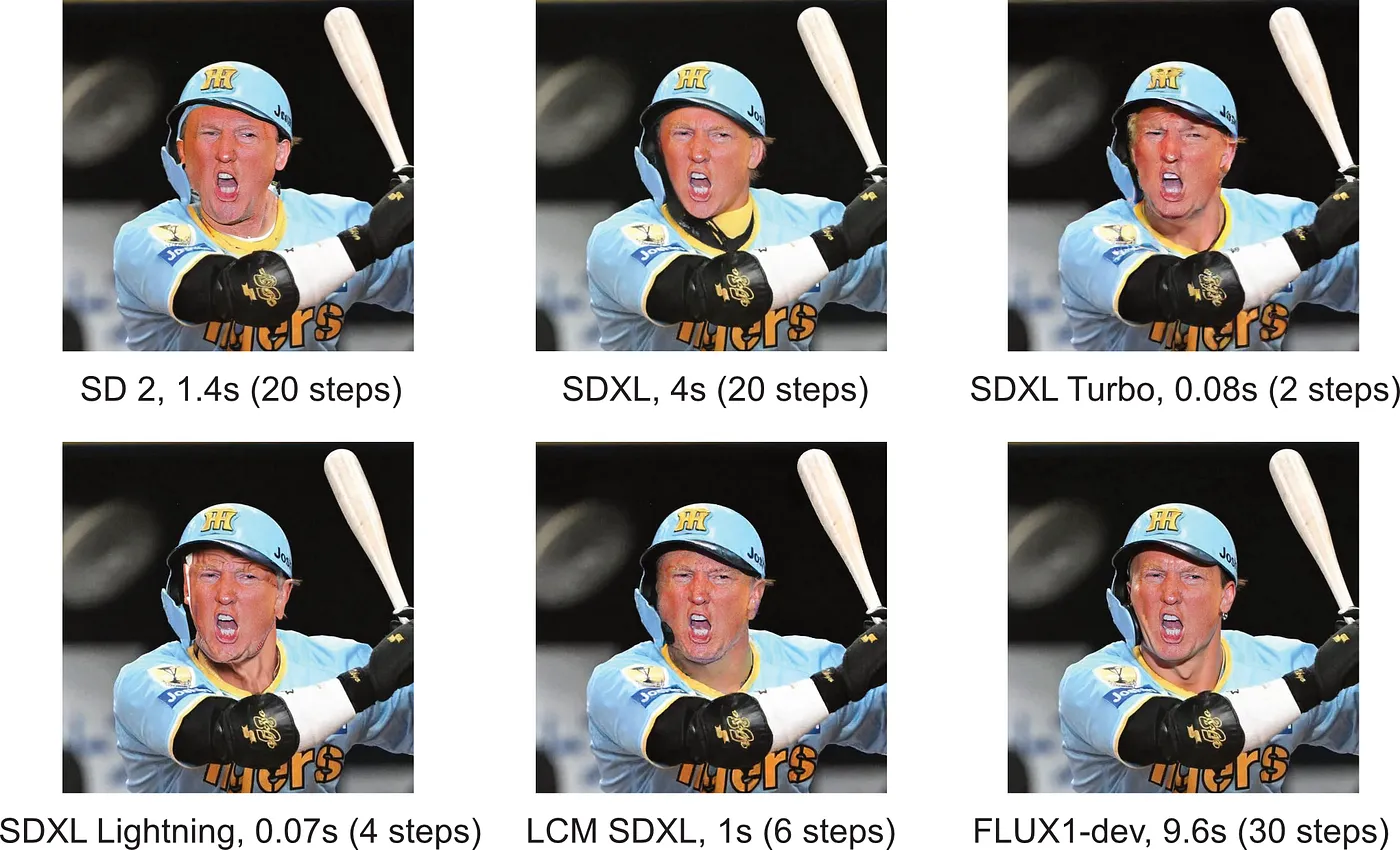
Note: People who are familiar with generative AI know that the resulting image depends on a lot more parameters than the image, mask, and model. Besides the number of steps, crucial parameters include the denoising strength, the guidance scale, prompt, and last but not least: the seed. Exploring all those parameters is a deep rabbit hole which we will not go down in this article.
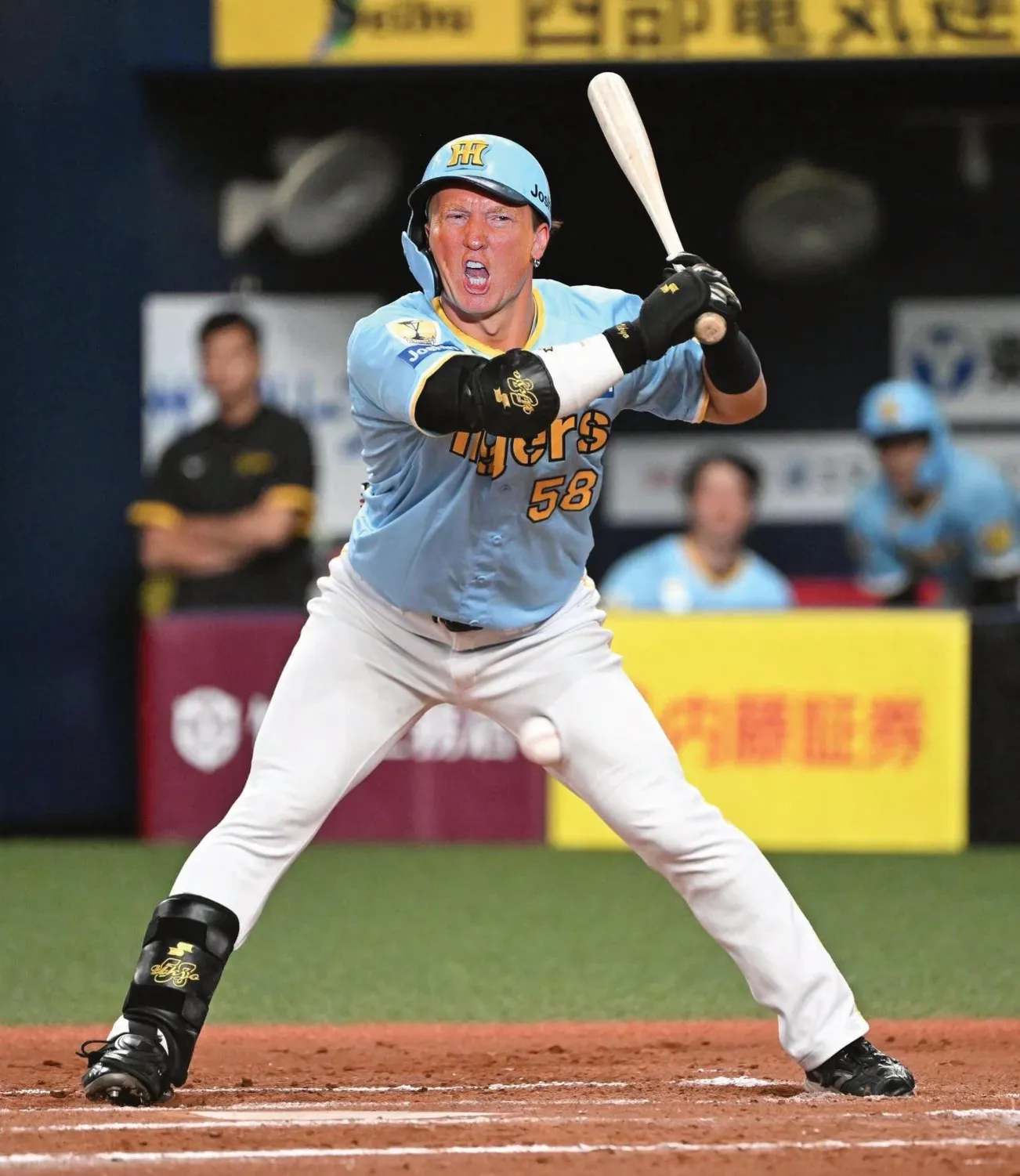
FLUX delivers the best quality in my opinion when it comes to quality but it is quite expensive to run. The GPU provider Replicate for example would charge ~0.3c for SDXL and ~1.4c for FLUX1-dev for the edit above.
I find the quality images generated with FLUX incredible. Consider the standard inpainting example of turning the dog on the bench into a cat:
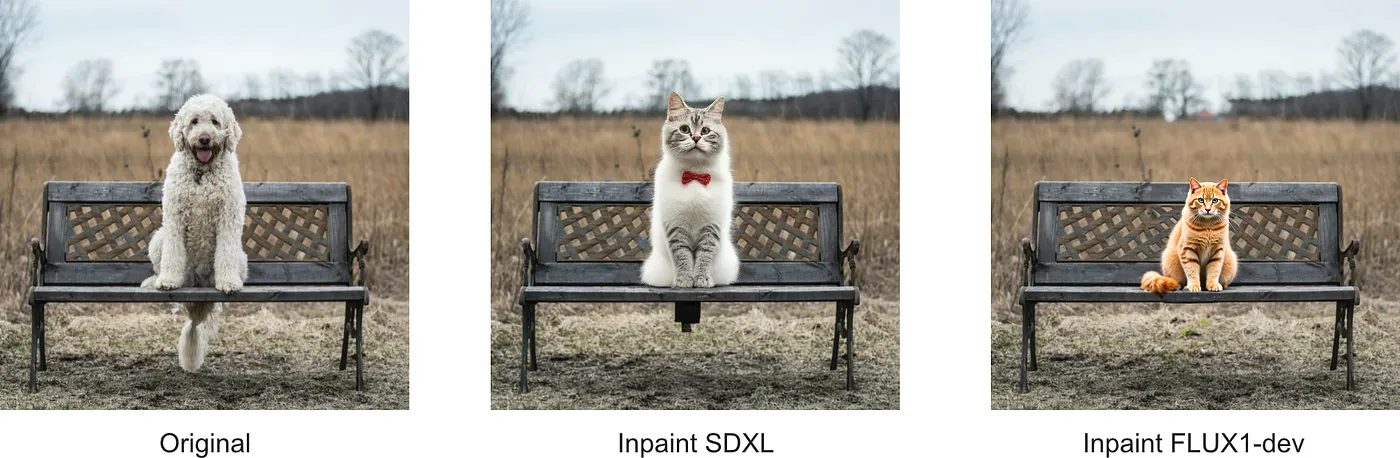
I chose Stable Diffusion XL (SDXL) as the model for fixing borders. It is cheap to run on GPU providers in the cloud, reasonably fast for the user, and produces good results for small areas such as the borders we are trying to fix here.
Step 4: Integrating the inpainted image into the original
While the quality of SDXL is generally good, I noticed that the specific inpainting model I use (stable-diffusion-xl-1.0-inpainting-0.1) sometimes changes the color tone of the entire image (a known issue).
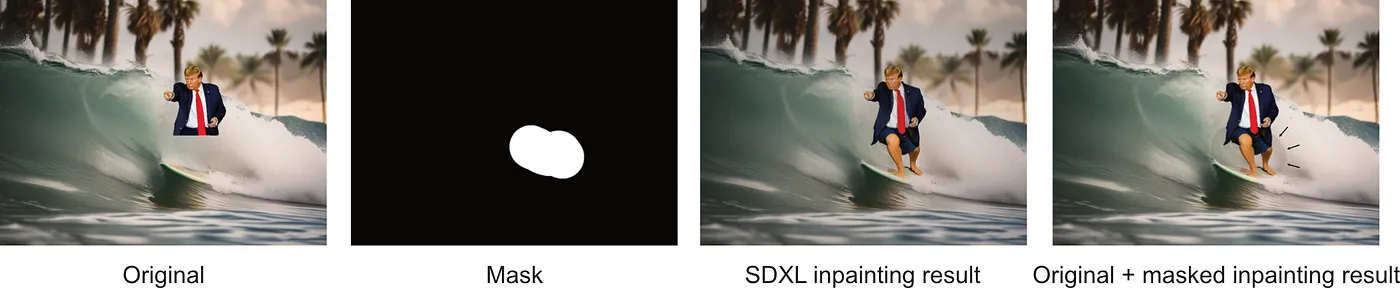
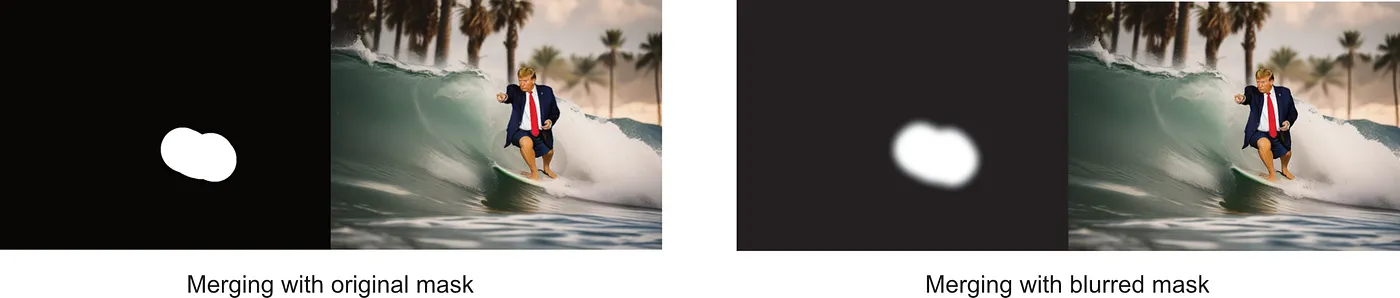
To address this, I use a modified mask when inserting the inpainting result into the original image. The process involves first dilating the mask by a few pixels and then applying a Gaussian blur to this dilated border of the mask. This technique helps ensure a smooth transition between the inpainted area and the original image. From what I understand, popular UIs like stable-diffusion-webui do the same to achieve seamless integration.
Steps 5 to infinity
You probably noticed that even FLUX inpaints are not perfect.
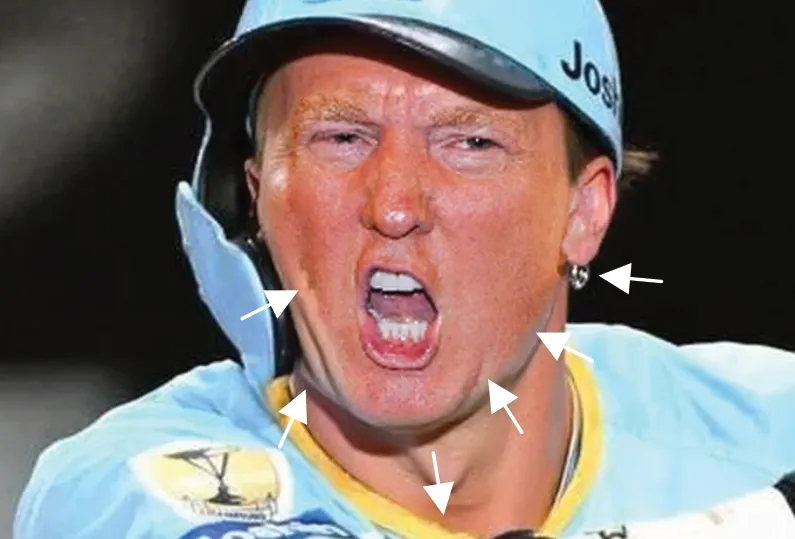
Generative AI is creative. It might just add an earring to Donald Trump playing baseball. Or simply ignore anatomy. Depending on your purpose, the result might need a few more iterations of removing and changing areas. If you plan on participating in r/PhotoshopRequest be warned, your Donald Trump with earrings will go viral in a bad way.
Summary
Generative AI tools are powerful for common image edits like removing or replacing objects or people. This article provides a glimpse into the challenges I faced while building snapfiddle, focusing on how to merge two images by swapping one face for another and adjusting the transition seamlessly.