Image Segmentation in the Browser with Segment Anything Model 2
Run Meta’s SAM2 with onnxruntime-web
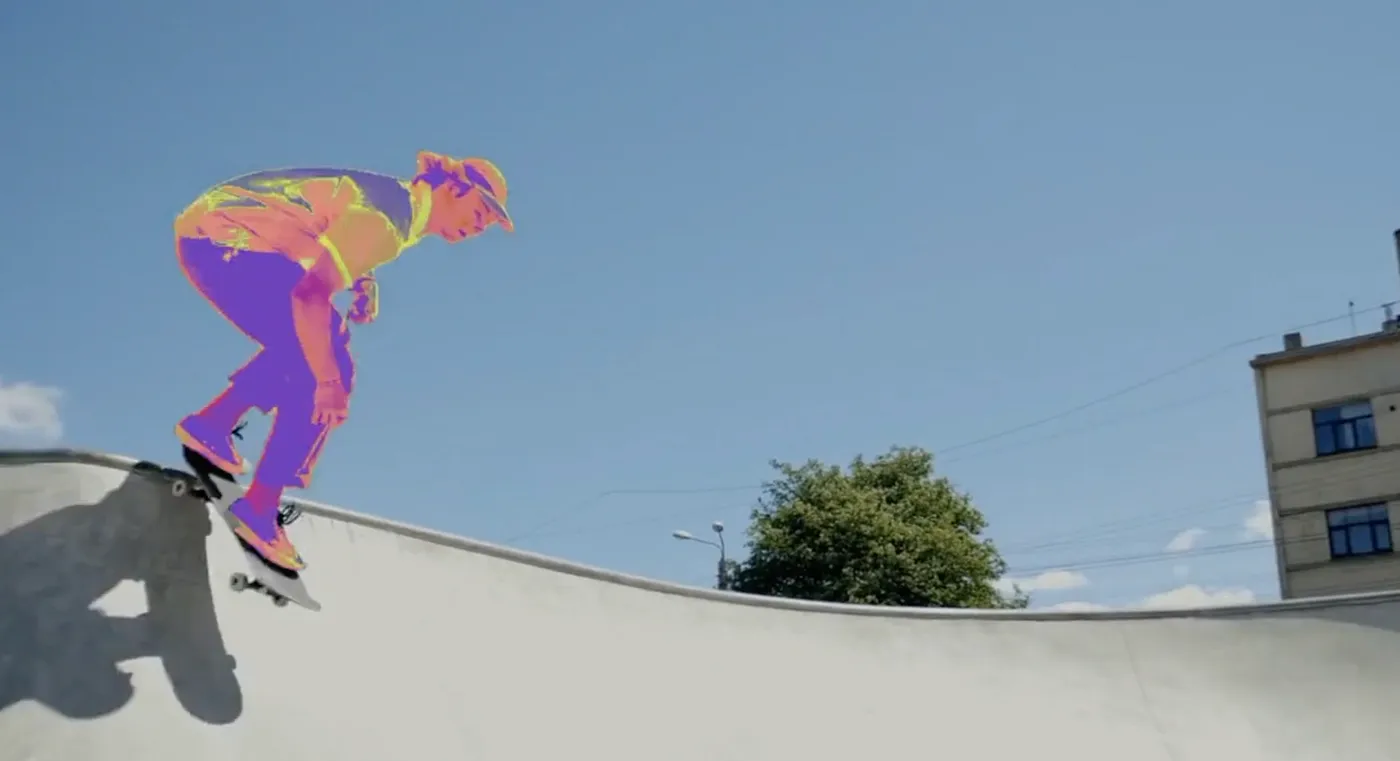
Ever wondered how you can run advanced image segmentation models directly in your browser? In this post, we’ll walk through the process of integrating Meta’s Segment Anything Model 2 (SAM2) into a JavaScript app using onnxruntime and webgpu.

Why a deep dive into client-side SAM2? I work on an in-browser image editor, snapfiddle, that uses SlimSAM for segmentation. With SAM2’s release, I plan to upgrade snapfiddle, but transformer.js (framework for running neural networks in the browser) doesn’t support SAM2 yet.
To get started with SAM2, I created a minimal viable image segmentation app using Next.js. I’ll guide you through the process of this (sometimes painful) experience, these are the key steps:
- Convert SAM2 to ONNX Runtime format
- Load the model on a webgpu (GPU) or wasm (CPU) backend
- Extract image data from a HTML5 canvas and generate image embeddings
- Capture mouse coords and decode a mask
- Draw mask on top of the original image
- Crop image using the mask
If you’re short on time and just want to dive into the code, you can check out the GitHub repo of the Next.js app. A live demo is available at sam2-seven.vercel.app.
Convert SAM2 to ONNX Runtime format
To run SAM2 in the browser and on mobile devices, we need to convert it to the Open Neural Network Exchange (ONNX) format. ONNX allows models to be transferred between different frameworks and runtimes. PyTorch provides tools for this conversion. We will use a Python notebook environment like Jupyter for this process.
Download SAM2
The URLs for the PyTorch checkpoints are stored in this script of the official SAM2 repository on GitHub. As a first step we download “tiny”, the smallest member of the SAM2 model family:
wget "https://dl.fbaipublicfiles.com/segment_anything_2/072824/sam2_hiera_tiny.pt"This file contains the entire model in 155.9 MB.
Convert PyTorch to ONNX format
For the conversion to ONNX format we will stand on the shoulders of Ibai Gorordo and use his approach of splitting SAM2 into two ONNX files, one for the encoder and another one for the decoder.
Let’s install the official SAM2 modeling code and a few ONNX packages:
git clone https://github.com/facebookresearch/segment-anything-2.git
cd segment-anything-2
pip3 install -e .
pip3 install onnx onnxscript onnxsim onnxruntime
Next, we define separate encoder and decoder models in PyTorch and export them to ONNX:
from typing import Optional, Tuple, Any
import torch
from torch import nn
import torch.nn.functional as F
from torch.nn.init import trunc_normal_

from sam2.modeling.sam2_base import SAM2Base

class SAM2ImageEncoder(nn.Module):
    def __init__(self, sam_model: SAM2Base) -> None:
        super().__init__()
        self.model = sam_model
        self.image_encoder = sam_model.image_encoder
        self.no_mem_embed = sam_model.no_mem_embed

    def forward(self, x: torch.Tensor) -> tuple[Any, Any, Any]:
        backbone_out = self.image_encoder(x)
        backbone_out["backbone_fpn"][0] = self.model.sam_mask_decoder.conv_s0(
            backbone_out["backbone_fpn"][0]
        )
        backbone_out["backbone_fpn"][1] = self.model.sam_mask_decoder.conv_s1(
            backbone_out["backbone_fpn"][1]
        )

        feature_maps = backbone_out["backbone_fpn"][-self.model.num_feature_levels:]
        vision_pos_embeds = backbone_out["vision_pos_enc"][-self.model.num_feature_levels:]

        feat_sizes = [(x.shape[-2], x.shape[-1]) for x in vision_pos_embeds]

        # flatten NxCxHxW to HWxNxC
        vision_feats = [x.flatten(2).permute(2, 0, 1) for x in feature_maps]
        vision_pos_embeds = [x.flatten(2).permute(2, 0, 1) for x in vision_pos_embeds]

        vision_feats[-1] = vision_feats[-1] + self.no_mem_embed

        feats = [feat.permute(1, 2, 0).reshape(1, -1, *feat_size)
                 for feat, feat_size in zip(vision_feats[::-1], feat_sizes[::-1])][::-1]

        return feats[0], feats[1], feats[2]


class SAM2ImageDecoder(nn.Module):
    def __init__(
            self,
            sam_model: SAM2Base,
            multimask_output: bool
    ) -> None:
        super().__init__()
        self.mask_decoder = sam_model.sam_mask_decoder
        self.prompt_encoder = sam_model.sam_prompt_encoder
        self.model = sam_model
        self.multimask_output = multimask_output

    @torch.no_grad()
    def forward(
            self,
            image_embed: torch.Tensor,
            high_res_feats_0: torch.Tensor,
            high_res_feats_1: torch.Tensor,
            point_coords: torch.Tensor,
            point_labels: torch.Tensor,
            mask_input: torch.Tensor,
            has_mask_input: torch.Tensor,
            img_size: torch.Tensor
    ):
        sparse_embedding = self._embed_points(point_coords, point_labels)
        self.sparse_embedding = sparse_embedding
        dense_embedding = self._embed_masks(mask_input, has_mask_input)

        high_res_feats = [high_res_feats_0, high_res_feats_1]
        image_embed = image_embed

        masks, iou_predictions, _, _ = self.mask_decoder.predict_masks(
            image_embeddings=image_embed,
            image_pe=self.prompt_encoder.get_dense_pe(),
            sparse_prompt_embeddings=sparse_embedding,
            dense_prompt_embeddings=dense_embedding,
            repeat_image=False,
            high_res_features=high_res_feats,
        )

        if self.multimask_output:
            masks = masks[:, 1:, :, :]
            iou_predictions = iou_predictions[:, 1:]
        else:
            masks, iou_predictions = self.mask_decoder._dynamic_multimask_via_stability(masks, iou_predictions)

        masks = torch.clamp(masks, -32.0, 32.0)
        print(masks.shape, iou_predictions.shape)

        masks = F.interpolate(masks, (img_size[0], img_size[1]), mode="bilinear", align_corners=False)

        return masks, iou_predictions

    def _embed_points(self, point_coords: torch.Tensor, point_labels: torch.Tensor) -> torch.Tensor:

        point_coords = point_coords + 0.5

        padding_point = torch.zeros((point_coords.shape[0], 1, 2), device=point_coords.device)
        padding_label = -torch.ones((point_labels.shape[0], 1), device=point_labels.device)
        point_coords = torch.cat([point_coords, padding_point], dim=1)
        point_labels = torch.cat([point_labels, padding_label], dim=1)

        point_coords[:, :, 0] = point_coords[:, :, 0] / self.model.image_size
        point_coords[:, :, 1] = point_coords[:, :, 1] / self.model.image_size

        point_embedding = self.prompt_encoder.pe_layer._pe_encoding(point_coords)
        point_labels = point_labels.unsqueeze(-1).expand_as(point_embedding)

        point_embedding = point_embedding * (point_labels != -1)
        point_embedding = point_embedding + self.prompt_encoder.not_a_point_embed.weight * (
                point_labels == -1
        )

        for i in range(self.prompt_encoder.num_point_embeddings):
            point_embedding = point_embedding + self.prompt_encoder.point_embeddings[i].weight * (point_labels == i)

        return point_embedding

    def _embed_masks(self, input_mask: torch.Tensor, has_mask_input: torch.Tensor) -> torch.Tensor:
        mask_embedding = has_mask_input * self.prompt_encoder.mask_downscaling(input_mask)
        mask_embedding = mask_embedding + (
                1 - has_mask_input
        ) * self.prompt_encoder.no_mask_embed.weight.reshape(1, -1, 1, 1)
        return mask_embedding
We are ready to use PyTorch’s built-in function torch.onnx.export to export the Encoder. We leave the input size fixed to 1024, this means we always have to feed 1024x1024px images to the model. The multimask_output setting ensures the model delivers the three best masks for any point prompt.
import torch
from sam2.build_sam import build_sam2

model_type = "sam2_hiera_tiny"
model_cfg = "sam2_hiera_t.yaml"
input_size = 1024
multimask_output = True

sam2_checkpoint = f"./{model_type}.pt"
sam2_model = build_sam2(model_cfg, sam2_checkpoint, device="cpu")

img = torch.randn(1, 3, input_size, input_size).cpu()

sam2_encoder = SAM2ImageEncoder(sam2_model).cpu()
high_res_feats_0, high_res_feats_1, image_embed = sam2_encoder(img)
print(high_res_feats_0.shape)
print(high_res_feats_1.shape)
print(image_embed.shape)

torch.onnx.export(sam2_encoder,
      img,
      f"{model_type}_encoder.onnx",
      export_params=True,
      opset_version=17,
      do_constant_folding=True,
      input_names = ['image'],
      output_names = ['high_res_feats_0', 'high_res_feats_1', 'image_embed'],
    )
This will create sam2_hiera_tiny_encoder.onnx with around 148 MB.
Let’s export the Decoder next. We need to provide sample inputs for the conversion script, so we create random tensors like img and point_coords.
sam2_decoder = SAM2ImageDecoder(sam2_model, multimask_output=multimask_output).cpu()

embed_dim = sam2_model.sam_prompt_encoder.embed_dim
embed_size = (sam2_model.image_size // sam2_model.backbone_stride, sam2_model.image_size // sam2_model.backbone_stride)
mask_input_size = [4 * x for x in embed_size]
print(embed_dim, embed_size, mask_input_size)

point_coords = torch.randint(low=0, high=input_size, size=(1, 5, 2), dtype=torch.float)
point_labels = torch.randint(low=0, high=1, size=(1, 5), dtype=torch.float)
mask_input = torch.randn(1, 1, *mask_input_size, dtype=torch.float)
has_mask_input = torch.tensor([1], dtype=torch.float)
orig_im_size = torch.tensor([input_size, input_size], dtype=torch.int32)

masks, scores = sam2_decoder(image_embed, high_res_feats_0, high_res_feats_1, point_coords, point_labels, mask_input, has_mask_input, orig_im_size)

torch.onnx.export(sam2_decoder,
      (image_embed, high_res_feats_0, high_res_feats_1, point_coords, point_labels, mask_input, has_mask_input, orig_im_size),
      f"{model_type}_decoder.onnx",
      export_params=True,
      opset_version=16,
      do_constant_folding=True,
      input_names = ['image_embed', 'high_res_feats_0', 'high_res_feats_1', 'point_coords', 'point_labels', 'mask_input', 'has_mask_input', 'orig_im_size'],
      output_names = ['masks', 'iou_predictions'],
      dynamic_axes = {"point_coords": {0: "num_labels", 1: "num_points"},
                      "point_labels": {0: "num_labels", 1: "num_points"},
                      "mask_input": {0: "num_labels"},
                      "has_mask_input": {0: "num_labels"}
      }
    )
The decoder is much smaller, sam2_hiera_tiny_decoder.onnx should have around 15 MB.
Testing the exported model
At this point we should be able to load and test our exported models with onnxruntime, still in Python, and be able to do inference.
Let’s try that and load the encoder:
import onnx

onnx_model = onnx.load("sam2_hiera_tiny_encoder.onnx")

# this should run without errors
onnx.checker.check_model(onnx_model)
Inference (on CPU) with a random image tensor:
img = torch.randn(1, 3, input_size, input_size).cpu()

outputs = ort_sess.run(None, {
    'image': img.numpy(),
})

for i in range(len(outputs)):
    print (ort_sess.get_outputs()[i].name)
    print (outputs[i].shape)
You should see an output exactly like this:
high_res_feats_0
(1, 32, 256, 256)
high_res_feats_1
(1, 64, 128, 128)
image_embed
(1, 256, 64, 64)
With this we have verified that the encoder works as expected.
Let’s test the decoder next:
ort_sess = ort.InferenceSession('sam2_hiera_tiny_decoder.onnx', {})

outputs = ort_sess.run(None, {
    'image_embed': image_embed.detach().numpy(),
    'high_res_feats_0': high_res_feats_0.detach().numpy(),
    'high_res_feats_1': high_res_feats_1.detach().numpy(),
    'point_coords': point_coords.numpy(),
    'point_labels': point_labels.numpy(),
    'mask_input': mask_input.numpy(),
    'has_mask_input': has_mask_input.numpy(),
    'orig_im_size': orig_im_size.numpy()
})

for i in range(len(outputs)):
    print (ort_sess.get_outputs()[i].name)
    print (outputs[i].shape)
You should see an output exactly like this:
masks
(1, 3, 1024, 1024)
iou_predictions
(1, 3)
The decoder delivers a Tensor masks with 3 masks, each of height and width of 1024x1024. The quality score for each masks is stored in the tensor iou_predictions.
There is one thing we have to do before we jump into loading this model in the browser: Yet another conversion step to ORT format, otherwise the encoder will not work.
Convert ONNX models to ONNX RunTime (ORT) format
In principle we could already switch to JavaScript and load the .onnx models but for some reason this led to an Error merging shape info for output in onnxruntime-web with the encoder model.
This was resolved by converting the encoder from ONNX to ORT format which officially “further optimizes the model running in constrained environments like the web or mobile applications”.
For this second conversion step we use convert_onnx_models_to_ort, a script that comes with the onnxruntime package:
python3 -m onnxruntime.tools.convert_onnx_models_to_ort sam2_hiera_tiny_encoder.onnxHowever! The decoder does not like this conversion to ORT. The decoder works fine in ONNX format but errors with Kernel “[Concat] /Concat_18” failed when converted to the ORT format. Weird but OK.
This leaves us with these two model files we will finally be able to use:
sam2_hiera_tiny_encoder.with_runtime_opt.ort
sam2_hiera_tiny_decoder.onnx
You can also find these files on my Hugging Face account at g-ronimo/sam2-tiny.
Now let’s move on to JavaScript and how to load these model files for inference in the browser.
Load the Model on a WebGPU or WASM Backend
The sections from here on demonstrate short snippets of a minimal Next.js image segmentation app. You can find the entire code on GitHub.
In order to load onnx/ort models you need to install onnxruntime-web first:
npm install onnxruntime-webWASM execution provider for CPU inference
Let’s load this package and create an inference session on the CPU using the wasm execution provider:
import * as ort from 'onnxruntime-web/all';

const session = await ort.InferenceSession.create(
  "/onnx/sam2_hiera_tiny_encoder.with_runtime_opt.ort",
  { executionProviders: ["cpu"] }
)
In this case the model files are stored in /public/onnx. For the actual Next.js app, I wrap the session and all the methods for inference in a class (SAM2, code). Here is a rough overview of the process:
- Check if model file exists in OPFS
- Download model from HuggingFace if needed and store in OPFS
- Instantiate an InferenceSession for encoder and decoder
- Expose methods
encodeImageanddecodefor encoding image and decoding masks given a point (x,y coordinates) on an image.
Additionally, this class SAM2 is used inside a separate thread, a Web Worker to not block the main and thereby freeze the UI while loading and inference of the model.
I used webpack with Next.js to bundle onnxruntime-web, this is what the next.config.js looks like:
const path = require('path');

const nextConfig = {
    webpack: (config) => {
        // See https://webpack.js.org/configuration/resolve/#resolvealias
        config.resolve.alias = {
            ...config.resolve.alias,
            "onnxruntime-web/all": path.join(__dirname, 'node_modules/onnxruntime-web/dist/ort.all.bundle.min.mjs'),
        }
        return config;
    },
}
module.exports = nextConfig
WebGPU
WebGPU is an API that allows the browser to access the local GPU if one is available. It is not yet supported by all the major browsers however, in my environment (macOS) it works fine with Chrome and Edge.
To load the model on the GPU instead of CPU, we simply pass “webgpu” as executionProviders to ort.InferenceSession.create .
const session = await ort.InferenceSession.create(
  "/onnx/sam2_hiera_tiny_encoder.with_runtime_opt.ort",
  { executionProviders: ["webgpu"] }
)
We want to be flexible and use the GPU if available and be able fallback to CPU, that’s why we load onnxruntime-web/all, this bundle contains all the files to run a model on GPU or CPU.
My approach to this is to try creating an InferenceSession with webgpu as executionProviders and if that fails with an exception try CPU. This is what the entire model loading code looks like:
async getORTSession(model) {
  /** Creating a session with executionProviders: {"webgpu", "cpu"} fails
   *  => "Error: multiple calls to 'initWasm()' detected."
   *  but ONLY in Safari and Firefox (wtf)
   *  seems to be related to web worker, see https://github.com/microsoft/onnxruntime/issues/22113
   *  => loop through each ep, catch e if not available and move on
   */
  let session = null
  for (let ep of ["webgpu", "cpu"]) {
    try { session = await ort.InferenceSession.create(model, { executionProviders: [ep]}) }
    catch (e) { console.error(e); continue }

    return [session, ep]
  }
}
OK, we are now ready for inference.
Extract Image Data and Generate Embeddings
Our encoder model accepts tensors of type ort.Tensor, so we need to convert our images to tensors first. Additionally, remember that our SAM2 inputs are fixed to 1024x1024px.
The approach is the following:
- Accept an image via upload and draw it onto an HTML5 canvas
- Pad canvas on top/bottom or left/right to make it square
- Resize canvas to 1024x1024px
- Next, extract the raw image data from the canvas. Obtain
Uint8ClampedArrayfrom ImageData, which is a flattened version of a multidimensional array of size[width, height RGBA]. This array contains the image data in the RGBA order:[r0, g0, b0, a0, r1, g1, b1, a1, ..., rn, gn, bn, an]for the pixels0,1, andn. - Reshape the image data. Convert the
Uint8ClampedArrayto anort.Tensorof size[1, 3, 1024, 1024]
Let’s walk through the code for each of these steps.
Pad input images and draw onto Canvas
To ensure the encoder receives square images while preserving the aspect ratio, we pad the input images accordingly. Portrait images are padded on the left and right, landscape images on the top and bottom, and square images remain unchanged.
Here is the code for loading an input image and padding it:
function resizeAndPadBox(sourceDim, targetDim) {
  if (sourceDim.h == sourceDim.w) {
    return { x: 0, y: 0, w: targetDim.w, h: targetDim.h }

  } else if (sourceDim.h > sourceDim.w) {
    // portrait => resize and pad left
    const newW = sourceDim.w / sourceDim.h * targetDim.w
    const padLeft = Math.floor((targetDim.w - newW) / 2)

    return { x: padLeft, y: 0, w: newW, h: targetDim.h }

  } else if (sourceDim.h < sourceDim.w) {
    // landscape => resize and pad top
    const newH = sourceDim.h / sourceDim.w * targetDim.h
    const padTop = Math.floor((targetDim.h - newH) / 2)

    return { x: 0, y: padTop, w: targetDim.w, h: newH }
  }
}

// load user image
const img = new Image();
img.src = imageURL  // imageURL: dataURL of image uploaded by user
img.onload = function() {

  // calculate padding and new position
  const largestDim = img.naturalWidth > img.naturalHeight ? img.naturalWidth : img.naturalHeight
  const box = resizeAndPadBox(
    {h: img.naturalHeight, w: img.naturalWidth},
    {h: largestDim, w: largestDim}
  )

  // draw square image onto new canvas
  const canvas = document.createElement('canvas');
  canvas.width = largestDim
  canvas.height = largestDim
  canvas.getContext('2d').drawImage(
    img,
    0, 0, img.naturalWidth, img.naturalHeight,
    box.x, box.y, box.w, box.h
  )
}
Convert Image Data to Tensor
We obtain the array of raw pixel values (red, green, blue, and alpha) using getImageData. Since the alpha value is not needed, we extract the red, green, and blue values, normalize them to the range 0–1 by dividing each channel by 255, and store them in a new Float32Array. This array is then passed to the constructor of ort.Tensor to create a tensor containing our image data.
function canvasToFloat32Array(canvas) {
  const imageData = canvas.getContext("2d").getImageData(0, 0, canvas.width, canvas.height).data
  const shape = [1, 3, canvas.width, canvas.height]

  const [redArray, greenArray, blueArray] = [ [], [], [] ]

  for (let i = 0; i < imageData.length; i += 4) {
    redArray.push(imageData[i]);
    greenArray.push(imageData[i + 1]);
    blueArray.push(imageData[i + 2]);
    // skip data[i + 3] to filter out the alpha channel
  }

  const transposedData = redArray.concat(greenArray).concat(blueArray);

  let i, l = transposedData.length;
  const float32Array = new Float32Array(shape[1] * shape[2] * shape[3]);
  for (i = 0; i < l; i++) {
    float32Array[i] = transposedData[i] / 255.0; // convert to float
  }

  return {float32Array, shape}
}

function resizeCanvas(canvasOrig, size) {
  const canvas = document.createElement('canvas');
  const ctx = canvas.getContext('2d')
  canvas.height = size.h
  canvas.width = size.w

  ctx.drawImage(canvasOrig, 0, 0, canvasOrig.width, canvasOrig.height, 0, 0, canvas.width, canvas.height)

  return canvas
}

const imageSize = {w: 1024, h: 1024}
const {imageFloat32Array, imageFloat32Shape} = canvasToFloat32Array(
  resizeCanvas(image, imageSize)
)
const imageTensor = new ort.Tensor("float32", imageFloat32Data, imageFloat32Shape);
Generate image embeddings
We obtain image embeddings by passing imageTensor to the encoder model.
const results = await sessionEncoder.run({image: imageTensor});

const image_encoded = {
  high_res_feats_0: results[sessionEncoder.outputNames[0]],
  high_res_feats_1: results[sessionEncoder.outputNames[1]],
  image_embed: results[sessionEncoder.outputNames[2]]
}
In the next step, the generated image embeddings and features in image_encoded will be used, along with a prompt, for inference with the decoder model.
Capture Mouse Coordinates and Decode a Mask
Once the user clicks on an image, we extract the coordinates and prompt the SAM2 decoder to generate segmentation masks.
Create point prompt
The first step is to react to an image click event and create a point.
const rect = event.target.getBoundingClientRect();

// input image will be resized to 1024x1024 -> normalize mouse pos to 1024x1024
const point = {
  x: (event.clientX - rect.left) / canvas.width * imageSize.w,
  y: (event.clientY - rect.top) / canvas.height * imageSize.h,
  label: 1
}
The point holds x and y coordinates of the click normalized to a 1024x1024px image. Additionally, the SAM2 decoder asks for a label for each point we pass for inference. 1 for positive, 0 for negative. For simplicity, our app only generates positive labeled points for a left click but this could, for example, be adapted to turn right clicks into negative labeled points (ie. coordinates that should not be included in the segmentation mask).
Generate masks
Next, we feed the given point into the decoder model. The decoder would also accept masks but we ignore this input and pass some mock data to the model along with has_mask_input of 0 (meaning false).
const inputs = {
  image_embed: this.image_encoded.image_embed,
  high_res_feats_0: this.image_encoded.high_res_feats_0,
  high_res_feats_1: this.image_encoded.high_res_feats_1,
  point_coords: new ort.Tensor("float32", [point.x, point.y], [1, 1, 2]),
  point_labels: new ort.Tensor("float32", [point.label], [1, 1]),
  mask_input: new ort.Tensor("float32", new Float32Array(256 * 256), [1, 1, 256, 256]),
  has_mask_input: new ort.Tensor("float32", [0], [1]),
  orig_im_size: new ort.Tensor("int32", [1024, 1024], [2])
}

const result =  await session.run(inputs);
const maskTensor = result.masks
const maskScores = result.iou_predictions.data
Extract best mask as canvas
The SAM2 decoder always generates three masks. We select the mask with the highest score and convert the ort.Tensor to an ImageData object to create a new canvas containing the best mask.
Let’s remind ourselves that maskTensor is of shape [1, 3, 256, 256] and maskScores is of shape [1, 3]. We therefore slice maskTensor to extract the best mask according to maskScores :
export function sliceTensorMask(maskTensor, maskIdx) {
  const [bs, noMasks, width, height] = maskTensor.dims
  const stride = width * height
  const start = stride * maskIdx, end = start + stride
  const maskData = maskTensor.cpuData.slice(start, end);
  const C = 4 // 4 output channels, RGBA
  const imageData = new Uint8ClampedArray(stride * C)

  for (let srcIdx = 0; srcIdx < maskData.length; srcIdx++) {
    const trgIdx = srcIdx * C
    const maskedPx = maskData[srcIdx] > 0
    imageData[trgIdx] = maskedPx > 0 ? 255 : 0
    imageData[trgIdx + 1] = 0
    imageData[trgIdx + 2] = 0
    imageData[trgIdx + 3] = maskedPx > 0 ? 255 : 0 // alpha
  }

  const canvas = document.createElement('canvas');
  const ctx = canvas.getContext('2d')
  canvas.height = height
  canvas.width = width
  ctx.putImageData(new ImageData(imageData, width, height), 0, 0);

  return canvas
}

const bestMaskIdx = maskScores.indexOf(Math.max(...maskScores))
const maskCanvas = sliceTensorMask(maskTensors, bestMaskIdx)
The hard part is over at this point 🥳
Draw mask on top of original image
The obtained mask (and canvas) are both 1024x1024 pixels. We will resize the mask when drawing it on the actual canvas displayed to the user.
const ctx = canvas.getContext('2d')

// draw original image
ctx.drawImage(image,
  0, 0, image.width, image.height,
  0, 0, canvas.width, canvas.height
);

// draw obtained mask with transparency
ctx.globalAlpha = 0.4
ctx.drawImage(mask,
  0, 0, mask.width, mask.height,
  0, 0, canvas.width, canvas.height
);
Crop Image Using Mask
To make this app a little more than a coding exercise, we will add a “crop” function to download the masked image.
function maskImageCanvas(imageCanvas, maskCanvas) {
  const canvas = document.createElement('canvas');
  const context = canvas.getContext("2d");
  canvas.height = imageCanvas.height
  canvas.width = imageCanvas.width

  // draw mask onto new canvas
  context.drawImage(
    maskCanvas,
    0, 0, maskCanvas.width, maskCanvas.height,
    0, 0, canvas.width, canvas.height
  )

  // source-in mode will draw image only on non-empty pixels (=mask)
  context.globalCompositeOperation = "source-in";
  context.drawImage(imageCanvas,
    0, 0, imageCanvas.width, imageCanvas.height,
    0, 0, canvas.width, canvas.height
  )

  return canvas
}

const link = document.createElement("a");
link.href = maskImageCanvas(image, mask).toDataURL();  // mask, image are both Canvas objects
link.download = "crop.png";

document.body.appendChild(link);
link.click();
And that’s it! A tiny app running a State-of-the-art segmentation model, accelerated and entirely in the browser.
Note: There is a lot more going on in this app. For this post, I focused on the key elements. You can find the entire code here.
Summary
In this article, we walked through the process of integrating Meta’s Segment Anything Model 2 into a JavaScript image segmentation app that runs in the browser using a GPU or CPU.
The key steps include:
- Model conversion to ONNX Runtime (ORT) format: SAM2-to-ONNX.ipynb, SAM2 Tiny Models on Hugging Face Hub
- Loading and performing inference of models on GPU and CPU
- Converting tensors to and from HTML5 canvas data
You can find the entire code on GitHub and check out the live demo at sam2-seven.vercel.app.
Image segmentation is a crucial feature for any image editor and this exercise was a preparation for integrating SAM2 into snapfiddle.ai, an image editor I am currently developing.