Train a FLUX.1 LoRA for $1
Step-by-Step Guide to Training on X-Rays (or any kind of Image)
FLUX.1 took the world by storm, and in this post, I’ll walk you through how to train a LoRA (Low-Rank Adaptation) on custom images, enabling FLUX1 to learn specific styles or characters and reproduce them.
I chose something a bit unusual as my target: X-ray images!

This guide will show you how to train a LoRA like this yourself, on photos of yourself, styles or any kind of image; in under an hour using the AI Toolkit by Ostris and a cheap cloud GPU or your home setup.
Dataset
For this project, I collected 30 X-ray images from the web. The dataset includes both human and non-human examples, some of which are pretty unusual. These images aren’t publicly available for copyright reasons, but the LoRA adapter built here is purely for educational purposes.
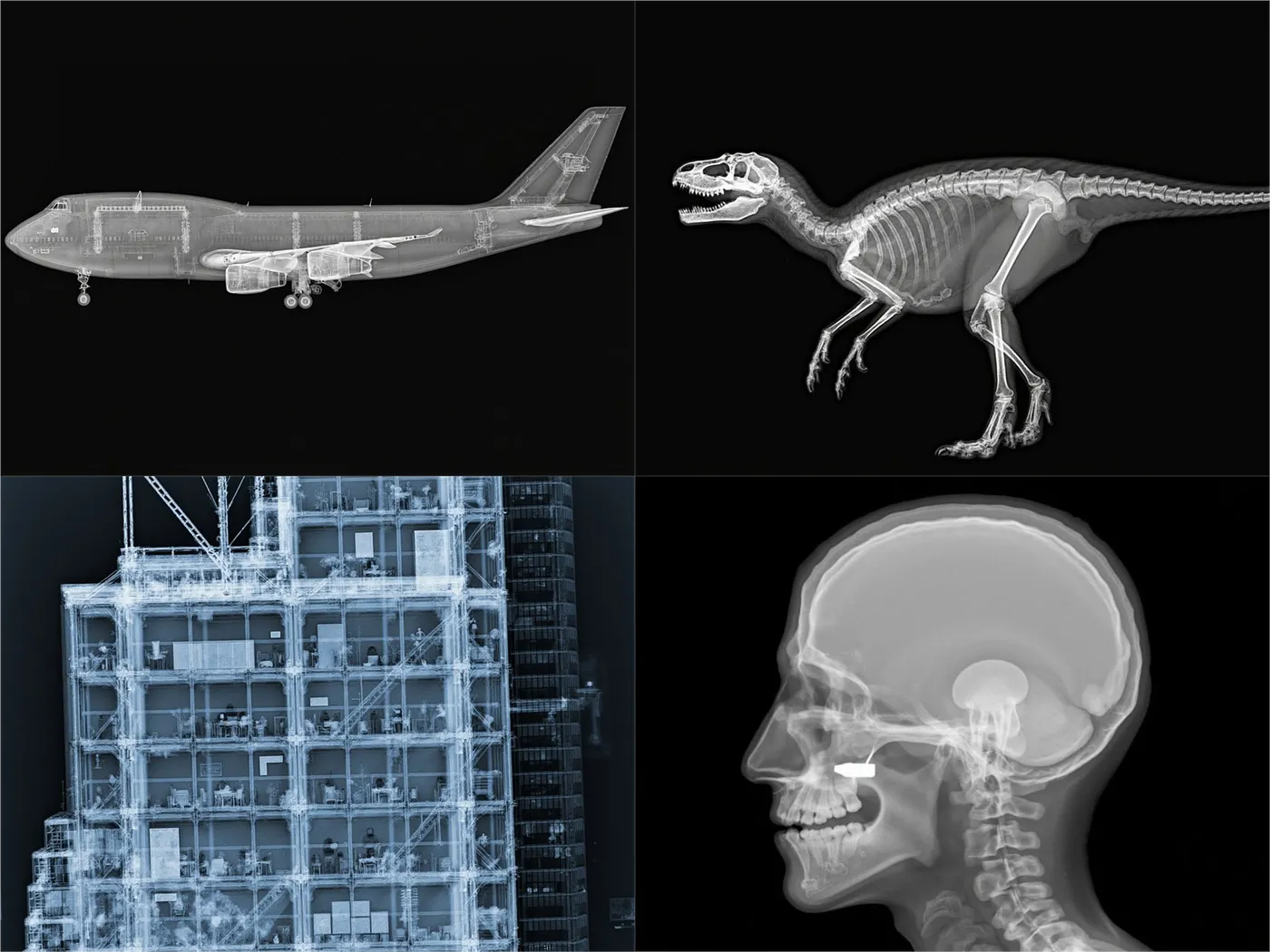
Here is a selection of four of the input images along with the captions.
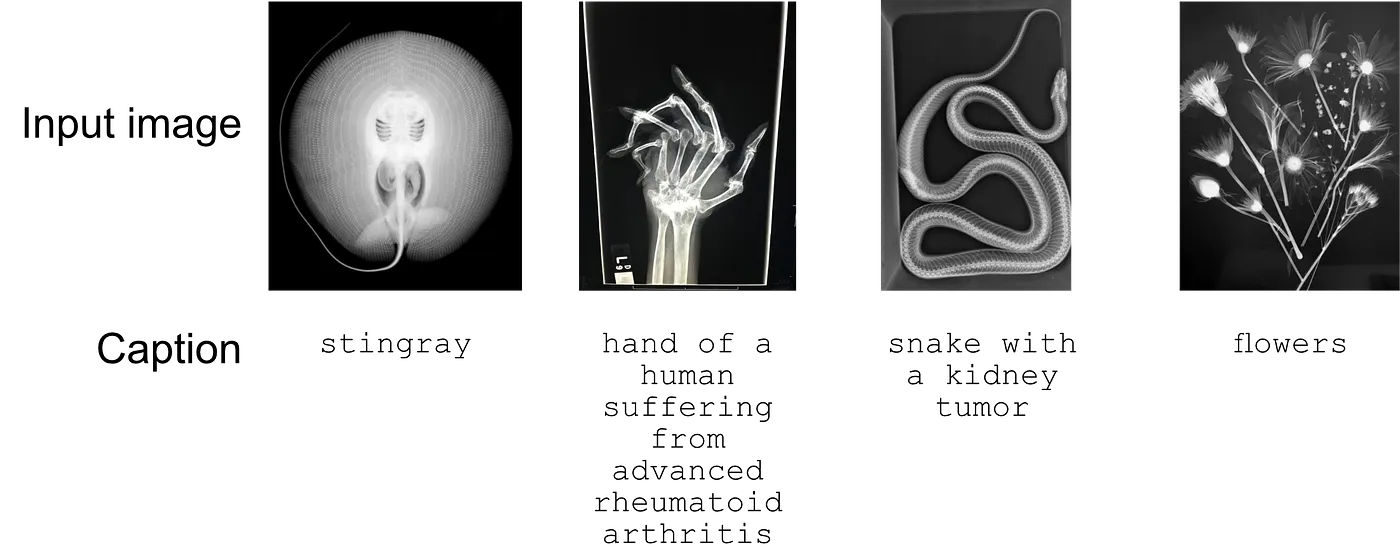
In total the LoRA was trained on 30 images.
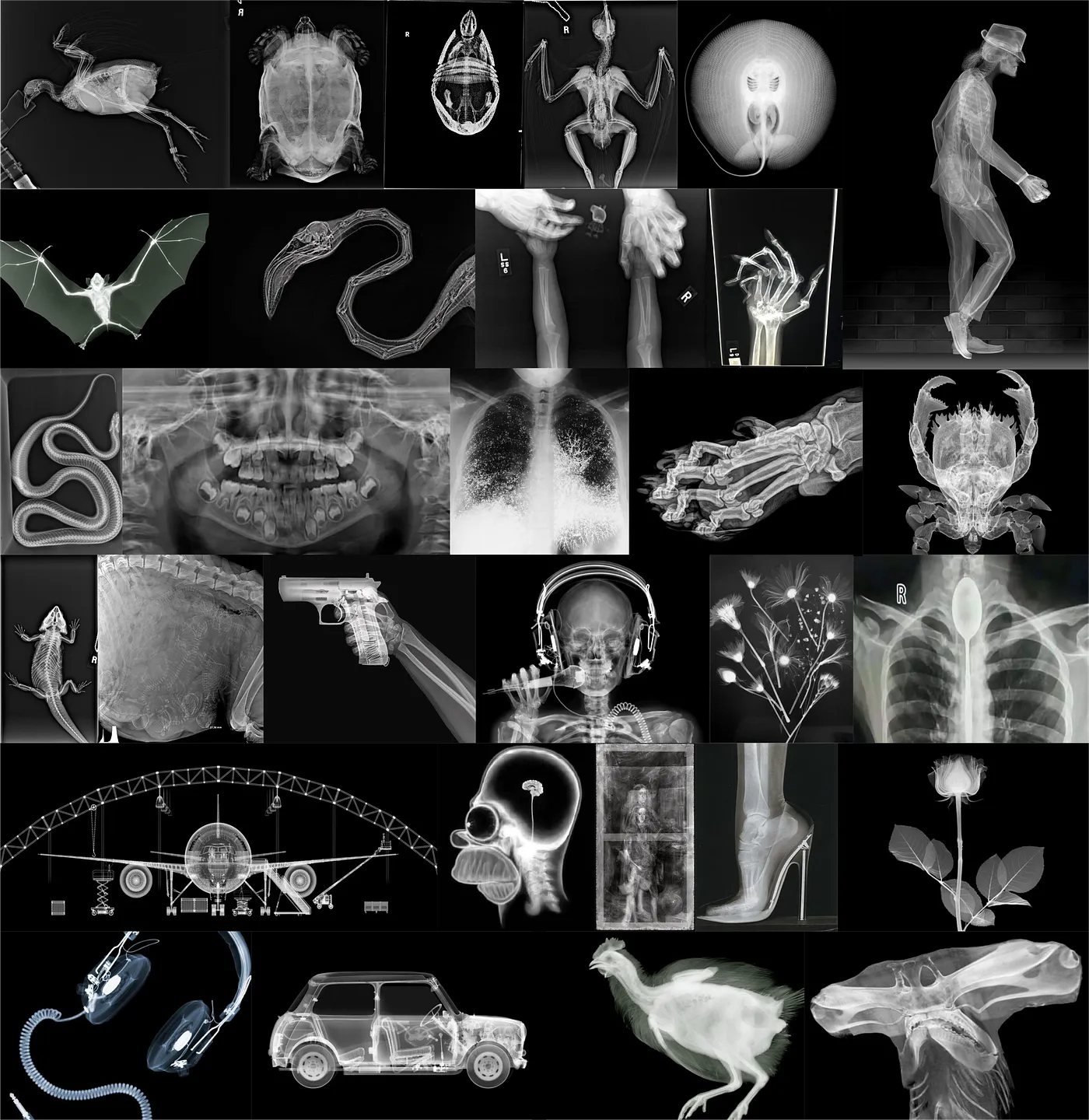
Please note that most of these images are copyrighted, the adapter produced here serves educational purposes only.
Training
To train this LoRA, I rented a GPU on RunPod, but you can use any GPU provider or even train at home if you have a suitable setup. Here’s how you can replicate this process using RunPod and an RTX 3090 or 4090, both of which offer enough memory for this task.
We will now walk through each of the steps and the required code. Alternatively, you can use this Jupyter notebook.
Step 1: Rent a GPU and start a Jupyter Notebook
If you have a GPU at home, skip this step. If not, head to RunPod to rent a pod. I am not affiliated with RunPod but use their services a lot. If you don’t have an account yet, I would appreciate if you use my referral link for signup.
Here’s what to do:
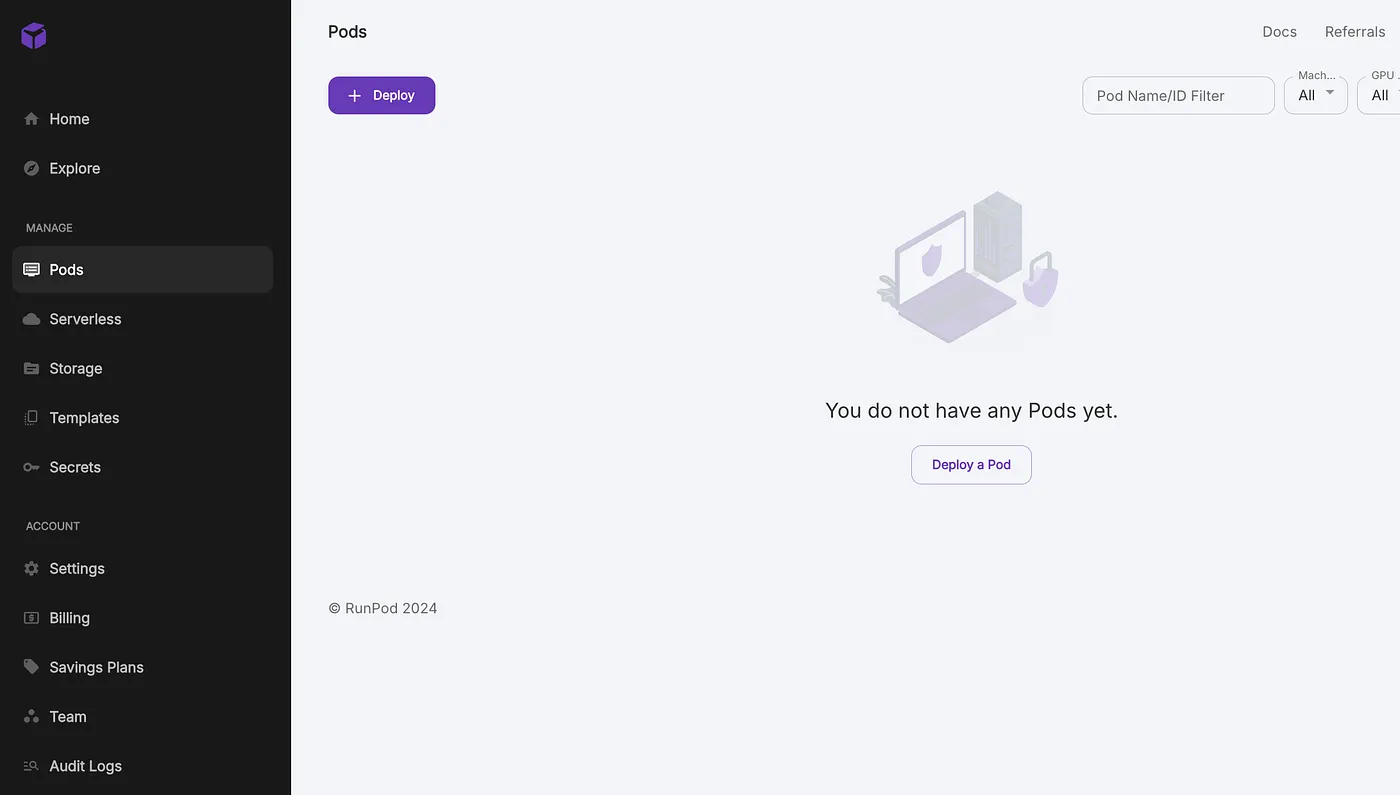
Create or log into your runpod account and head to https://www.runpod.io/console/pods to deploy a new pod.
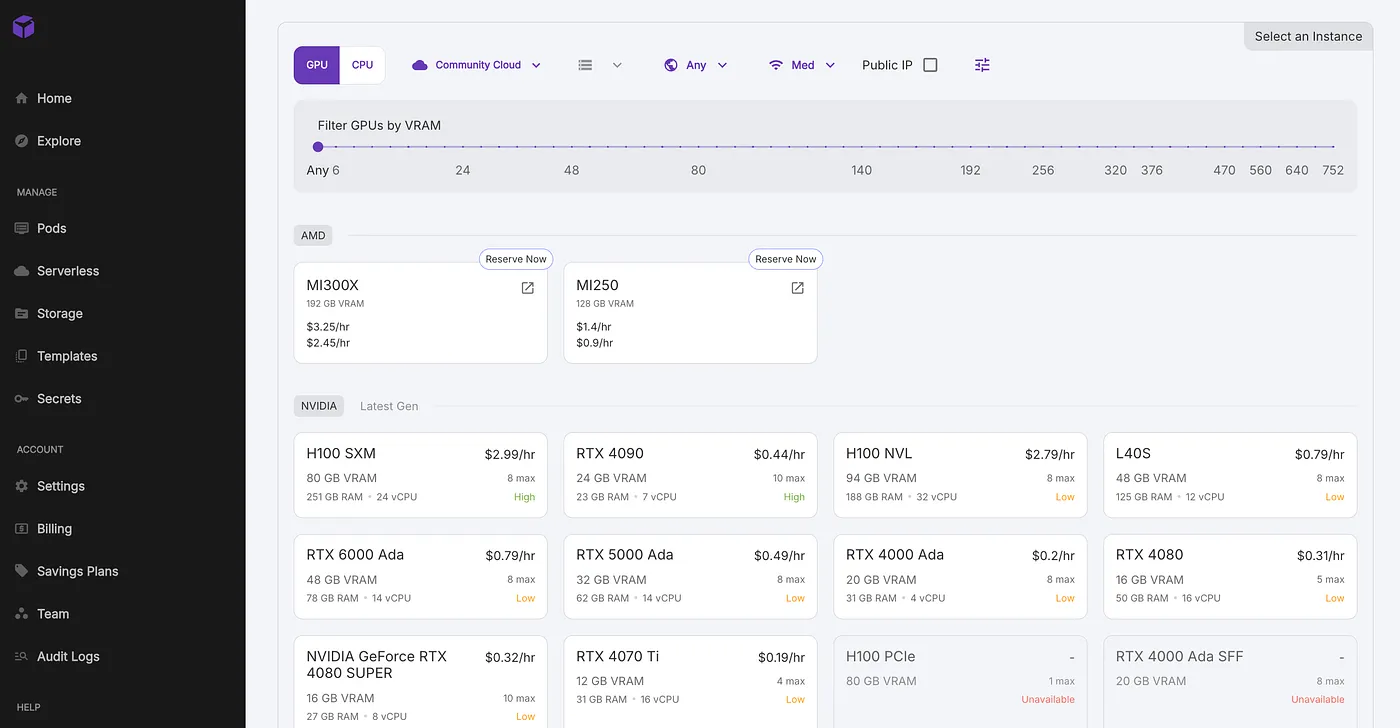
Choose an NVIDIA GeForce RTX 4090 on the community cloud for 0.44$ per hour, a good tradeoff between speed and price.
The standard PyTorch template is fine; choose to edit the template and request 70GB of container and volume disk space.
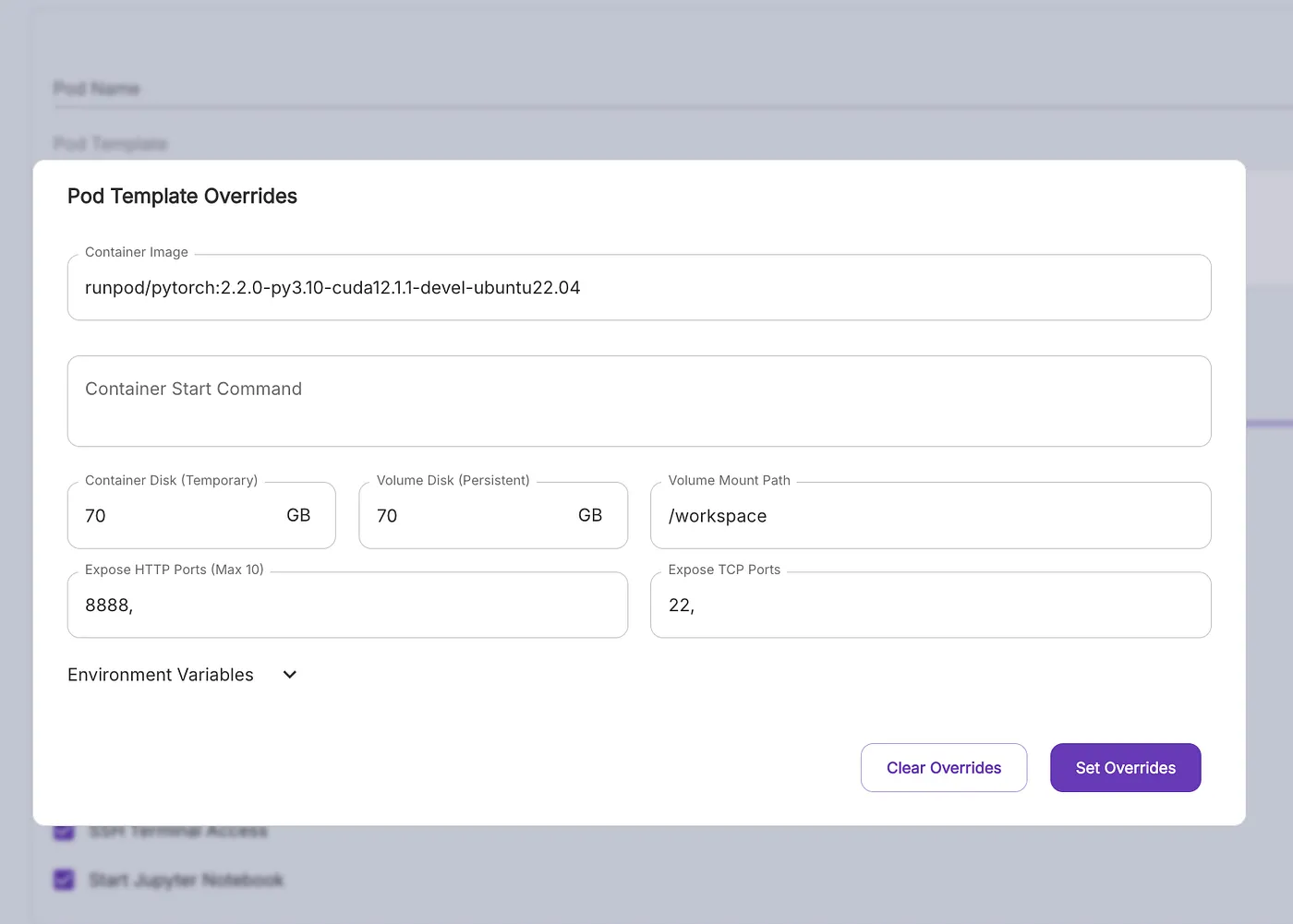
Deploy the pod, “Jupyter notebook” is checked by default, which is what we need to direct the training process.
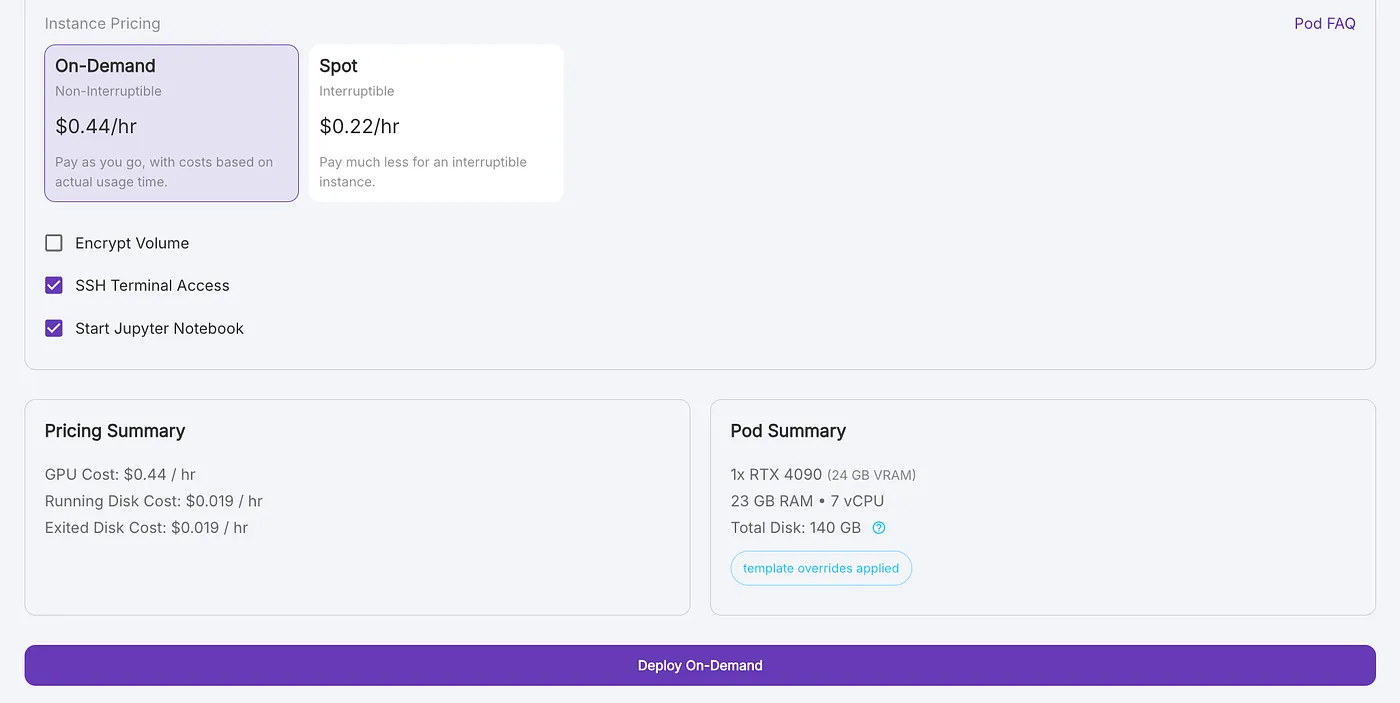
Once the pod is ready, click the Connect > Connect to Jupyter Lab
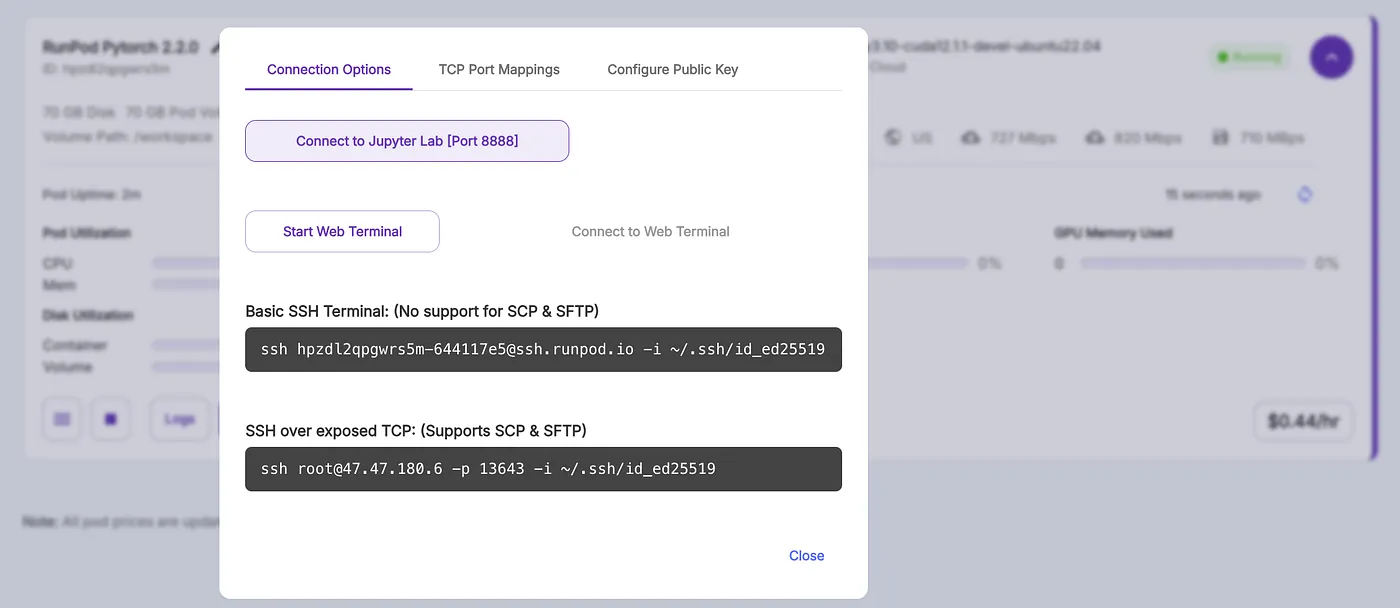
In Jupyter Lab, create a new “Python 3” notebook, and you’re ready to begin!
Step 2: Setup ai-toolkit
We first download the Ostris’ AI-Toolkit from GitHub and install all of its dependencies. /workspace is the common mount point for volumes on RunPod but you could use any other directory here.
%cd /workspace
!git clone https://github.com/ostris/ai-toolkit.git
!cd ai-toolkit && git submodule update --init --recursive && pip install -r requirements.txt
Step 3: Upload your images and captions
Create a folder /workspace/images to store your images.
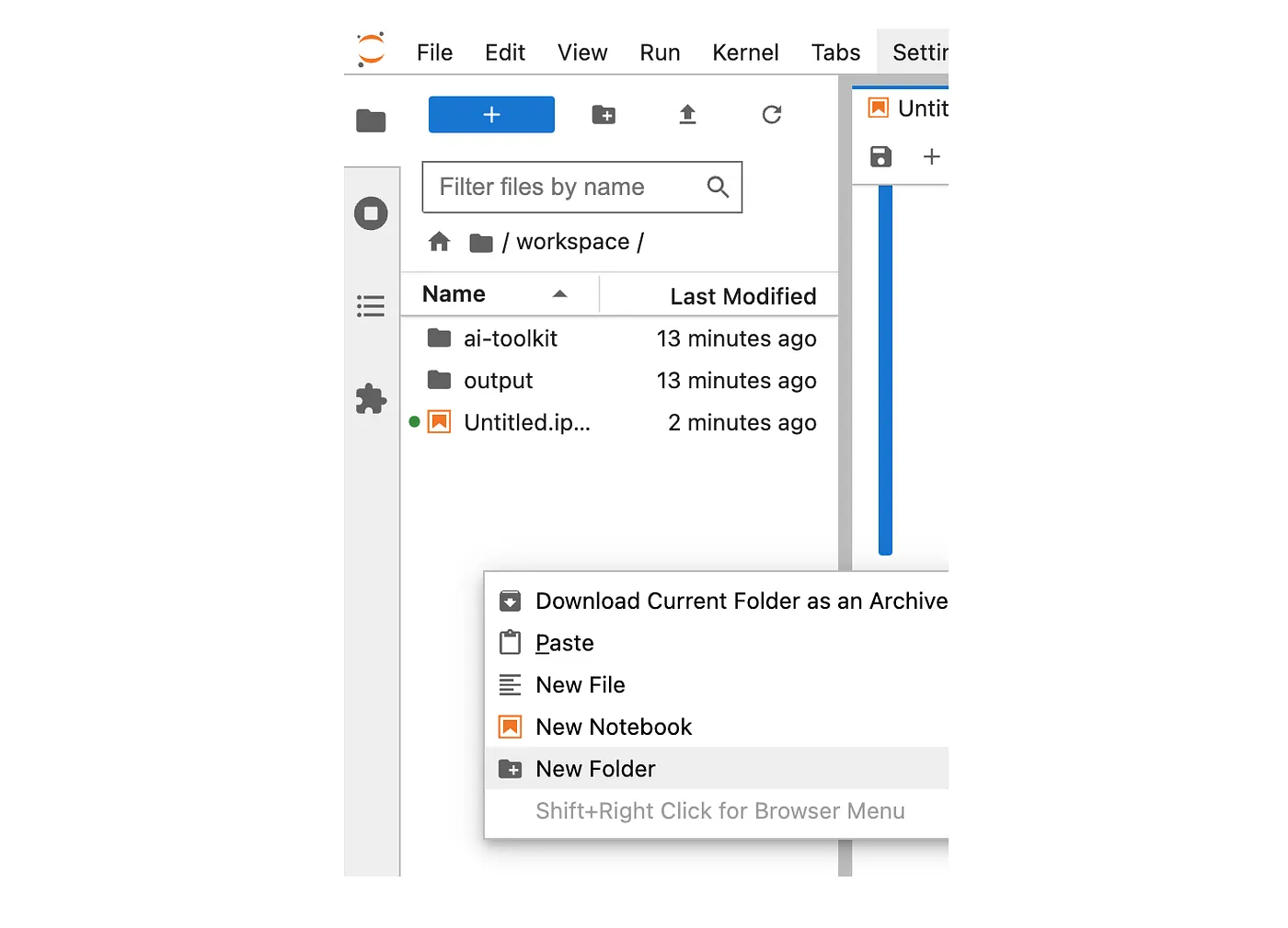
Drag and drop your X-ray images along with caption files (a short description in .txt format) into this folder.
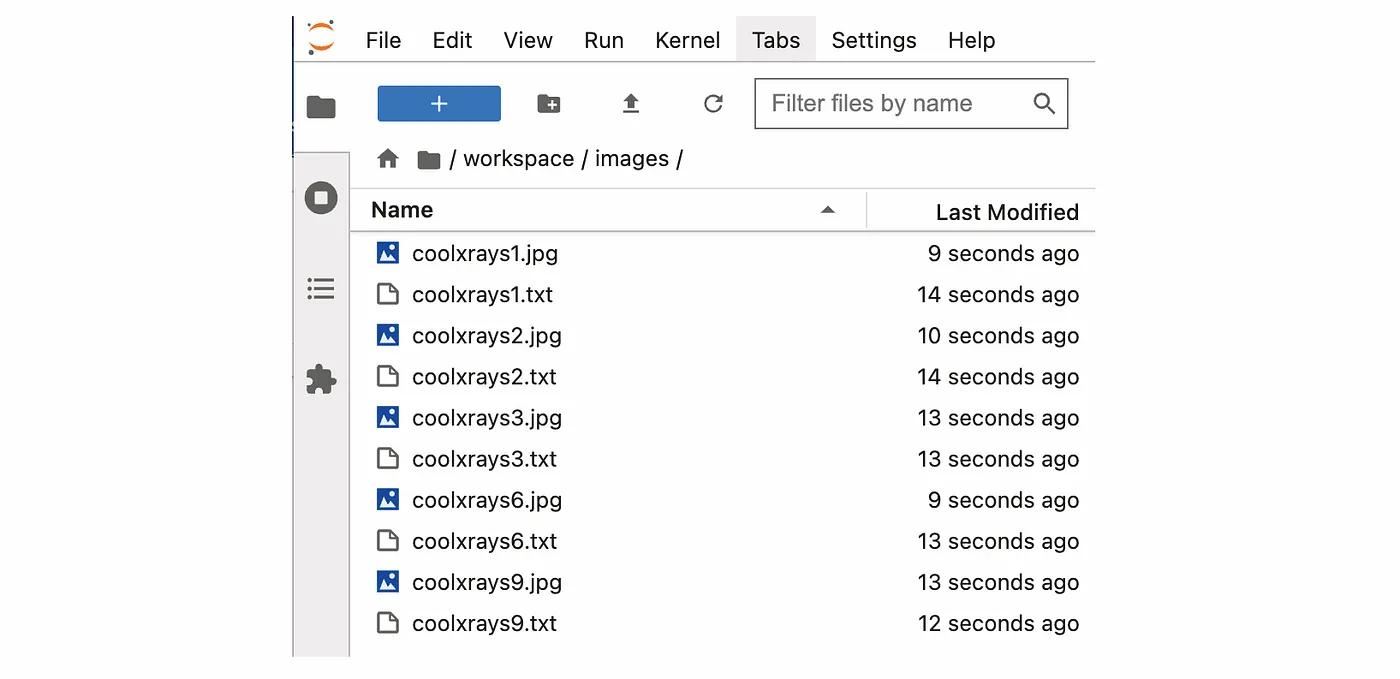
Upload at least 10 images and the captions containing a short description of the image in a separate .txt file.
Step 4: Login to Hugging Face
Access to the FLUX1-dev model is gated, so you first have to accept their terms. Log into your Hugging Face account (or create one) and accept their terms: FLUX1-dev repository.
Next, generate a Hugging Face API token here and log in:
!huggingface-cli login --token hf_XXXXTOKENXXXXStep 5: Start training
Define the training parameters:
INPUT_FOLDER = "/workspace/images"
OUTPUT_FOLDER = "/workspace/output"
TRIGGER_WORD = "eksray"
LORA_RANK = 16
BATCHSIZE = 1
LEARNING_RATE = 0.0001
STEPS_TRAIN = 3000
STEPS_SAVE = 250
STEPS_SAMPLE = 250- Trigger word (
TRIGGER_WORD): Can be any word that FLUX1 is not yet familiar with. This unique word (e.g.,eksray) will trigger the features we’ve trained on. If your caption text files do not contain the trigger word, it will be added automatically. - LoRA rank (
LORA_RANK): Balances trainable parameters and model capacity. Higher ranks might be needed for more complex adaptations but require more VRAM. In my experience16is a good start but with the X-Rays, the generations are definitely better with a higher rank like32. - Batch size (
BATCHSIZE): A low batch size of1minimizes VRAM usage and reduces the risk of running out of memory, but slows down training and might not fully utilize the GPU’s capabilities. Again, higher batch size requires more VRAM and with a 24GB VRAM GPU we are stuck with a batch size of1. - Learning rate (
LEARNING_RATE): Specifies how much the weights are changed in direction of the gradient during each update step. I chose0.0001here which is what most trainers use as a starting point. Training on characters (faces) also works with a higher LR of0.0004. Higher values will still yield a good adapter depending on the dataset but everything above0.001is not a good idea in my experience. - Training steps (
STEPS_TRAIN): Provides sufficient training time to learn desired features, but can be time-consuming. I went for3000steps for the X-Rays but depending on the training set and the other parameters you can expect nice results with as few as500to1000steps. - Save steps (
STEPS_SAVE): How often to save an adapter. I suggest to keep this low and save often to see at which point the generations start looking like what you expect and what this point is passed (overtraining) - Sample steps (
STEPS_SAMPLE): How often to generate sample images.
Create a dictionary containing all the parameters for AI Toolkit.
from collections import OrderedDict

job_to_run = OrderedDict([
    ('job', 'extension'),
    ('config', OrderedDict([
        # this name will be the folder and filename name
        ('name', 'my_first_flux_lora_v1'),
        ('process', [
            OrderedDict([
                ('type', 'sd_trainer'),
                ('training_folder', OUTPUT_FOLDER),
                ('performance_log_every', 100),
                ('device', 'cuda:0'),
                ('trigger_word', TRIGGER_WORD),
                ('network', OrderedDict([
                    ('type', 'lora'),
                    ('linear', LORA_RANK),
                    ('linear_alpha', LORA_RANK)
                ])),
                ('save', OrderedDict([
                    ('dtype', 'float16'),  # precision to save
                    ('save_every', STEPS_SAVE),  # save every this many steps
                    ('max_step_saves_to_keep', 10)  # how many intermittent saves to keep
                ])),
                ('datasets', [
                    # datasets are a folder of images. captions need to be txt files with the same name as the image
                    # for instance image2.jpg and image2.txt. Only jpg, jpeg, and png are supported currently
                    # images will automatically be resized and bucketed into the resolution specified
                    OrderedDict([
                        ('folder_path', INPUT_FOLDER),
                        ('caption_ext', 'txt'),
                        ('caption_dropout_rate', 0.05),  # will drop out the caption 5% of time
                        ('shuffle_tokens', False),  # shuffle caption order, split by commas
                        ('cache_latents_to_disk', True),  # leave this true unless you know what you're doing
                        ('resolution', [512, 768, 1024])  # flux enjoys multiple resolutions
                    ])
                ]),
                ('train', OrderedDict([
                    ('batch_size', BATCHSIZE),
                    ('steps', STEPS_TRAIN),  # total number of steps to train 500 - 4000 is a good range
                    ('gradient_accumulation_steps', 1),
                    ('train_unet', True),
                    ('train_text_encoder', False),  # probably won't work with flux
                    ('content_or_style', 'balanced'),  # content, style, balanced
                    ('gradient_checkpointing', True),  # need the on unless you have a ton of vram
                    ('noise_scheduler', 'flowmatch'),  # for training only
                    ('optimizer', 'adamw8bit'),
                    ('lr', LEARNING_RATE),
                    # ema will smooth out learning, but could slow it down. Recommended to leave on.
                    ('ema_config', OrderedDict([
                        ('use_ema', True),
                        ('ema_decay', 0.99)
                    ])),
                    # will probably need this if gpu supports it for flux, other dtypes may not work correctly
                    ('dtype', 'bf16')
                ])),
                ('model', OrderedDict([
                    # huggingface model name or path
                    ('name_or_path', 'black-forest-labs/FLUX.1-dev'),
                    ('is_flux', True),
                    ('quantize', True),  # run 8bit mixed precision
                    #('low_vram', True),  # uncomment this if the GPU is connected to your monitors. It will use less vram to quantize, but is slower.
                ])),
                ('sample', OrderedDict([
                    ('sampler', 'flowmatch'),  # must match train.noise_scheduler
                    ('sample_every', STEPS_SAMPLE),  # sample every this many steps
                    ('width', 1024),
                    ('height', 1024),
                    ('prompts', [
                        # you can add [trigger] to the prompts here and it will be replaced with the trigger word
                        'xray of a Boeing 747 [trigger]',
                        'xray of a woman holding a coffee cup [trigger]',
                        'xray of a dog [trigger]',
                    ]),
                    ('neg', ''),  # not used on flux
                    ('seed', 42),
                    ('walk_seed', True),
                    ('guidance_scale', 4),
                    ('sample_steps', 20)
                ]))
            ])
        ])
    ])),
    # you can add any additional meta info here. [name] is replaced with config name at top
    ('meta', OrderedDict([
        ('name', '[name]'),
        ('version', '1.0')
    ]))
])
And we are ready to start training our adapter:
import os
import sys
sys.path.append('/workspace/ai-toolkit')
from toolkit.job import run_job

run_job(job_to_run)
Step 6: Upload LoRA to Hugging Face
After training, upload your LoRA to Hugging Face for easy sharing and access.
!huggingface-cli upload HF_ACCOUNT/HF_REPO /workspace/output/my_first_flux_lora_v1 Change HF_ACCOUNT and HF_REPO to your Hugging Face username and the name of the repository which will be created.
Results
I trained the model for 3000 steps with a learning rate of 0.0001. Initially, the results were underwhelming.
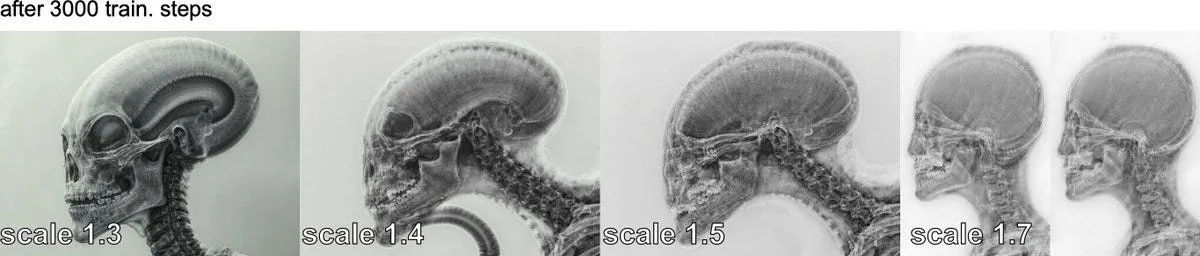
However, I noticed that adding “X-ray of” to the prompt significantly improved the results.
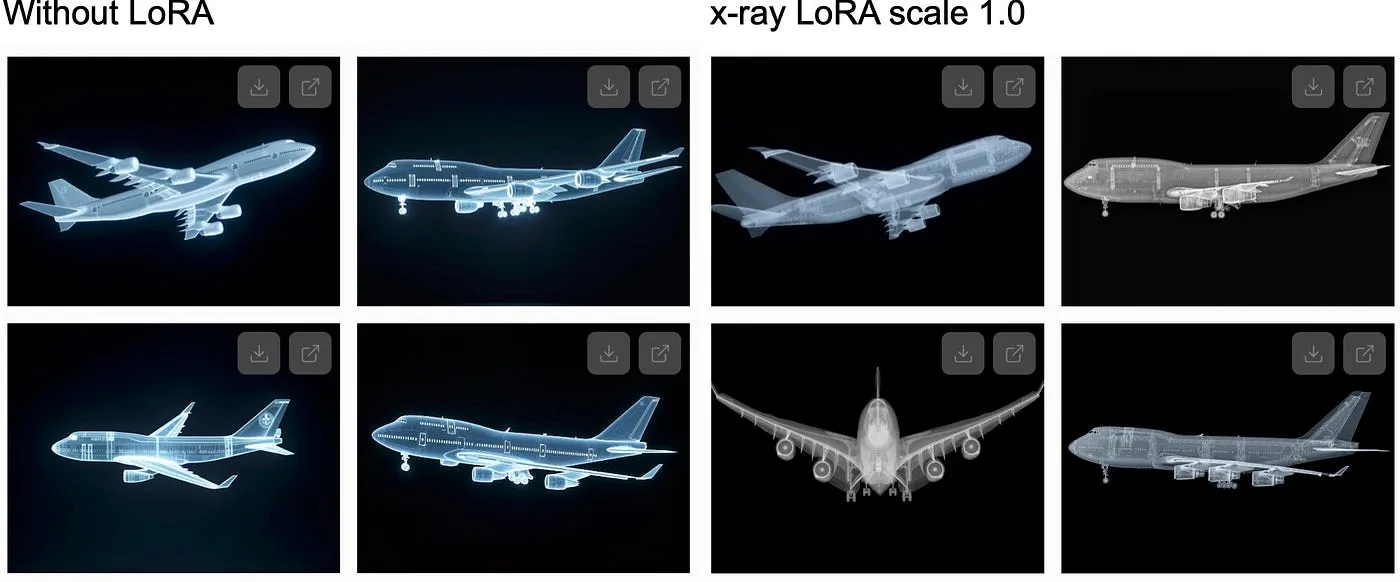
This consistently gave me what I was looking for with a LoRA scale of 1.0.
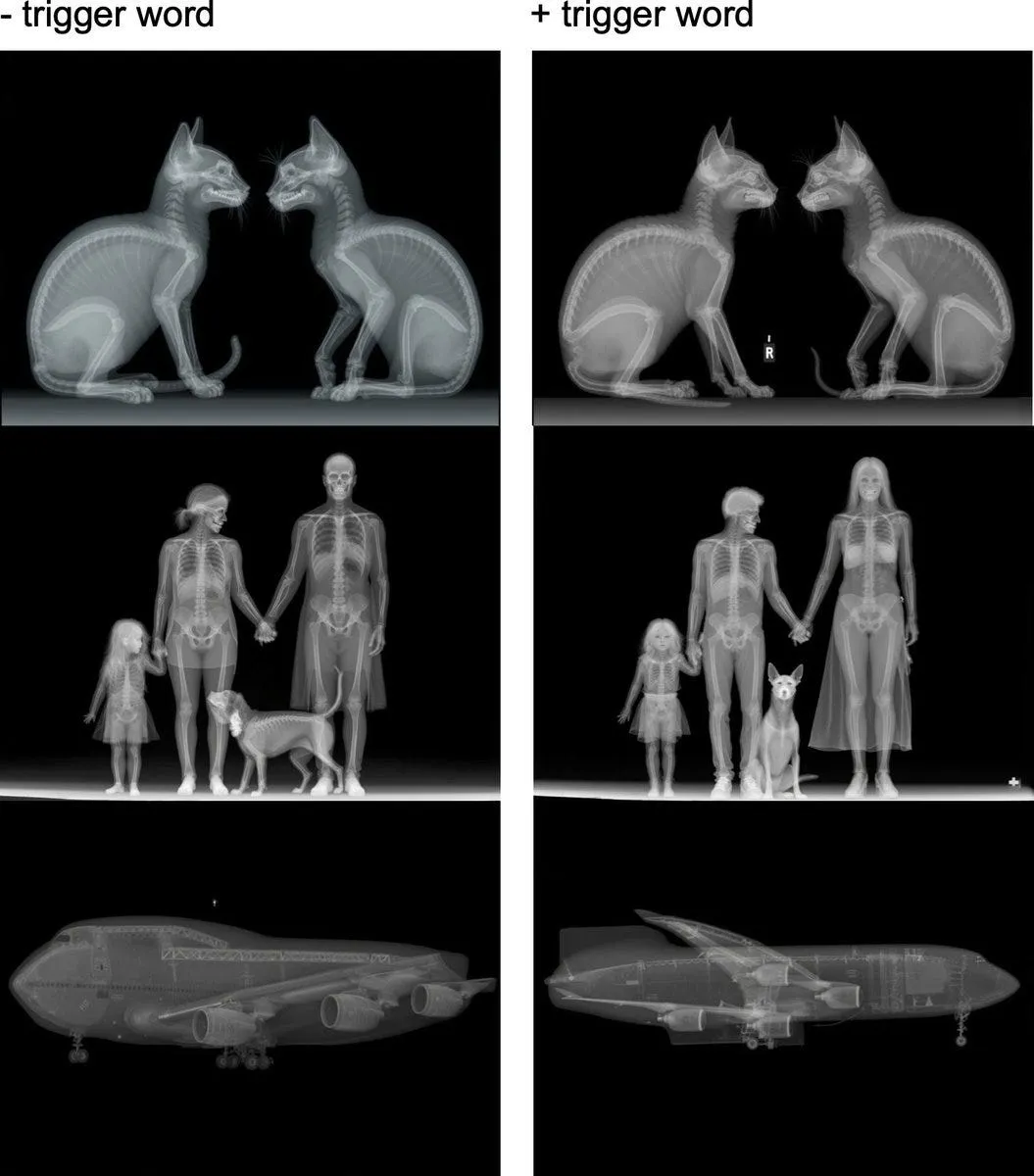
This is all prompted without the trigger word. Adding the trigger word makes the images more X-Ray-like, mostly perfect front/side views and less blue.
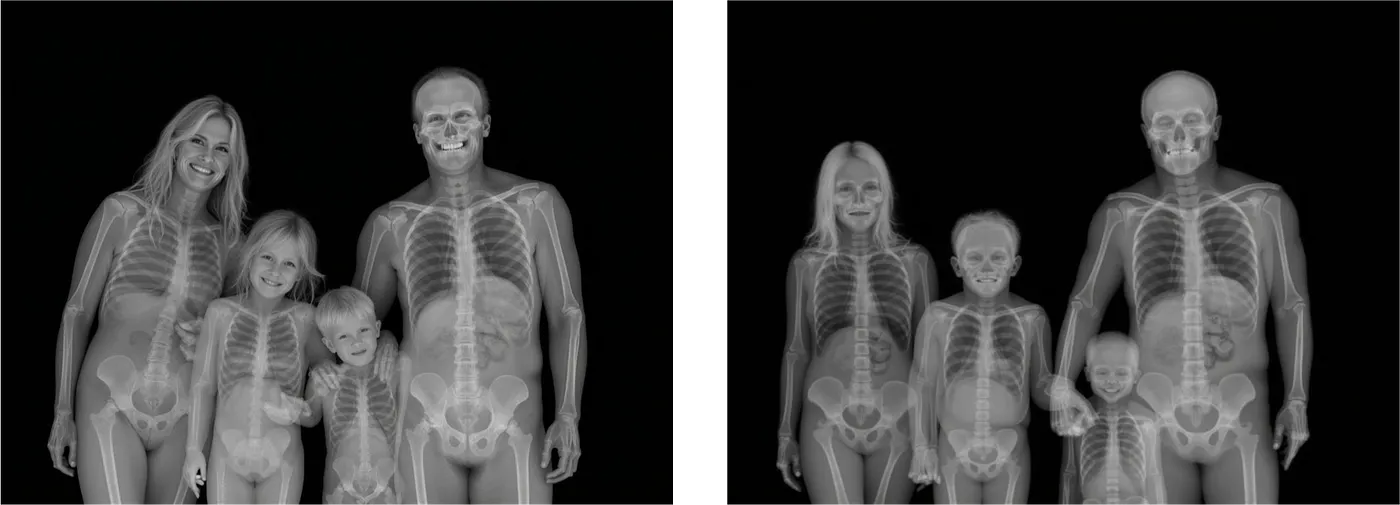
Another interesting thing I noticed is that prompts with features that cannot be expressed on an X-Ray yield images that are partially “real.” For example, “happy family” versus “family.”
You can find the trained LoRA on my Hugging Face account: https://huggingface.co/g-ronimo/FLUX1-dev-LoRA-XRAYs.
One thing to note is that FLUX1-dev comes with a non-commercial licence which also applies to all derivatives including LoRAs trained with this model.
Summary
In this blog post, we walked through the process of training FLUX1-dev on images. I chose X-rays for this example, but you can use any type of image, including photos of yourself or specific styles. The default parameters are a good starting point, but you might want to use higher ranks on a more powerful GPU to ensure the model learns all the features you value. Increasing the learning rate might allow you to use fewer steps, depending on your training set.
Happy training!