Client-Side Image Inpainting with ONNX and Next.js
LaMa in the Browser. It's not the llama you know
LaMa (not Llama) is a small and fast inpainting model. Most inpainting models are diffusion-based and come with a lot of baggage (VAE, text encoder). LaMa is tiny and even runs in the browser!

I discovered LaMa while browsing models on Replicate, and it quickly became the first inpainting model I integrated into my image editor, snapfiddle.
It’s incredibly fast and does a good job at removing people or objects from photos, at least for small patches and homogenous backgrounds.

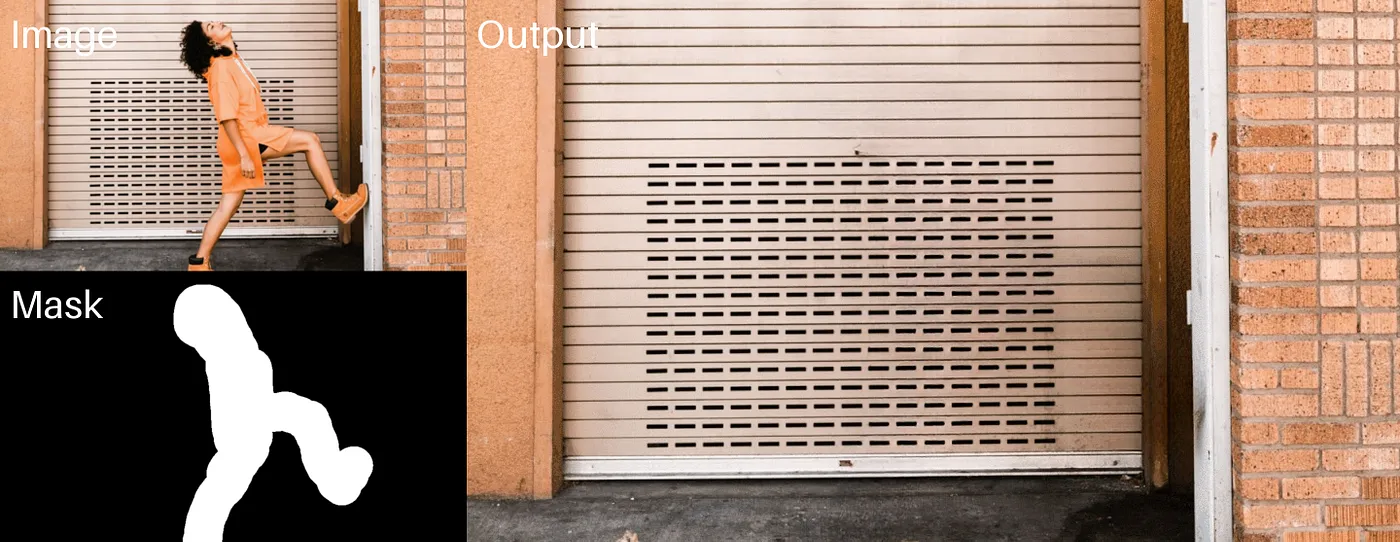
Pretty impressive, right? And it’s superfast, the image is processed in 800ms on an NVIDIA T4 GPU.
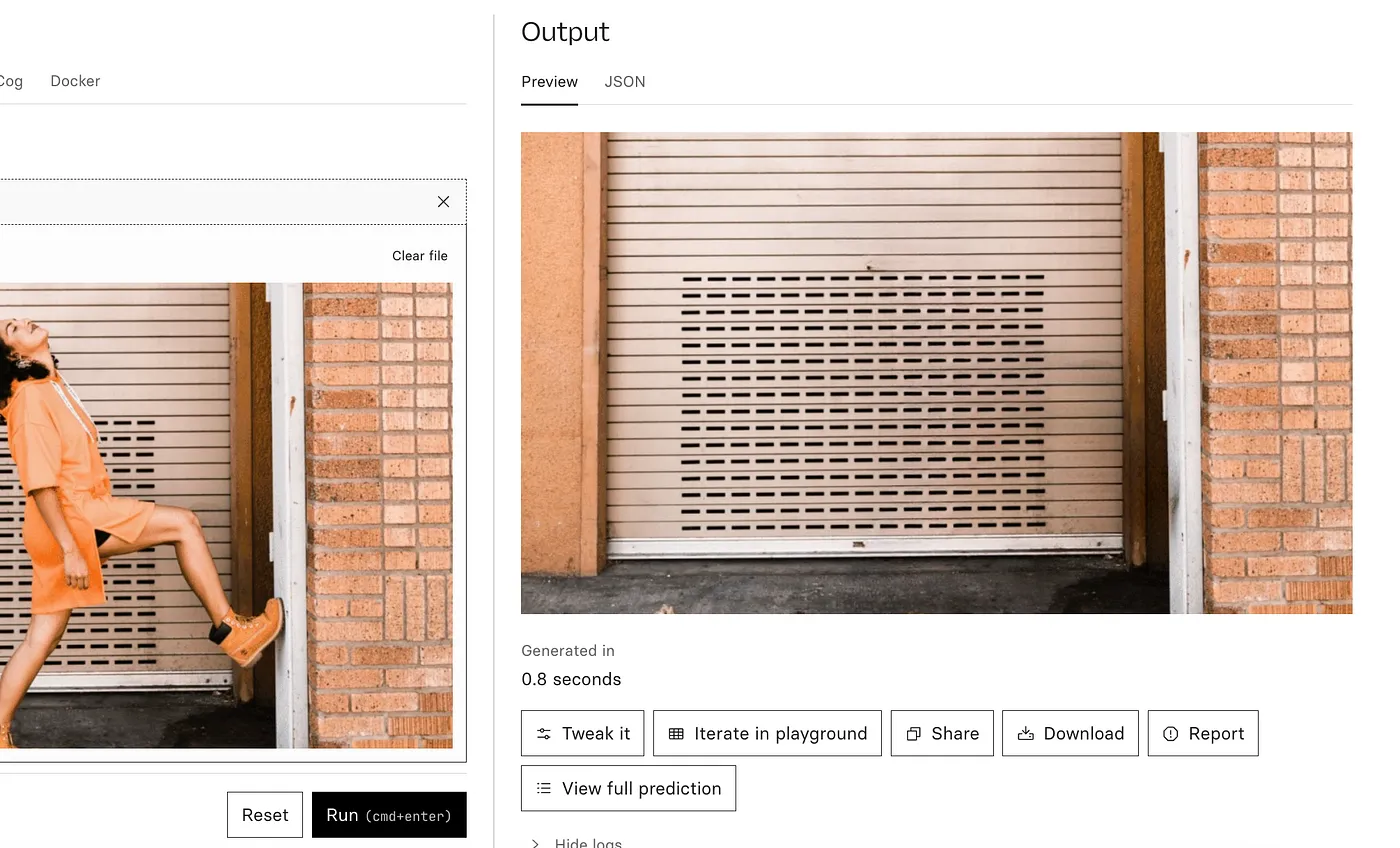
And here comes the best part: This 51 million parameter model runs in the browser too! Download the model, it runs 100% client-side on your device.
The Tech Stack:
- LaMa GitHub Repo
- ONNX Runtime Web
- Next.js for the frontend
Run LaMa client-side
A community member converted LaMa to ONNX (see GitHub issue #315), making it possible to run the model in the browser using onnxruntime-web. I took this opportunity to build a Next.js app that loads and runs the model entirely client-side.
The result? A smooth, private, and surprisingly fast inpainting experience—even on my M3 MacBook.
Let’s go step by step.
How to use LaMA with onnxruntime (Python)
Before we get to the client-side part, let’s check out how to use this model in our favourite language python.
These are the packages you need and the specific versions I used:
numpy                             1.26.4
onnxruntime                       1.20.1
pillow                            10.4.0
torch                             2.7.1
torch-audiomentations             0.11.1
torchvision                       0.22.1
The below has been adapted from the creators of the ONNX version of LaMa (original source in this notebook).
First, download the onnx model here. Then load the model and some images.
from PIL import Image
from torchvision import transforms
import torch
import numpy as np
import onnxruntime
import io, requests

def open_image(image):
    if isinstance(image, str):
      if image.startswith("http://") or image.startswith("https://"):
        image = Image.open(io.BytesIO(requests.get(image).content))
      else:
        image = Image.open(image)
    return image

sess_options = onnxruntime.SessionOptions()
model = onnxruntime.InferenceSession('./lama_fp32.onnx', sess_options=sess_options)

image = open_image("https://huggingface.co/Carve/LaMa-ONNX/resolve/main/image.jpg").resize((512, 512))
mask = open_image("https://huggingface.co/Carve/LaMa-ONNX/resolve/main/mask.png").convert("L").resize((512, 512))
The onnx model at this point only accepts 512x512px input images which is why we resize them.
Next, we transform the images to tensors and feed them to the model.
image=transforms.ToTensor()(image)[None,]
mask=transforms.ToTensor()(mask)[None,]
# binarize mask
mask = (mask > 0) * 1.0

outputs = model.run(None, {
    'image': image.numpy(),
    'mask': mask.numpy()
})

output = outputs[0][0]

# Postprocess the outputs
output = output.transpose(1, 2, 0)
output = output.astype(np.uint8)
output = Image.fromarray(output)
output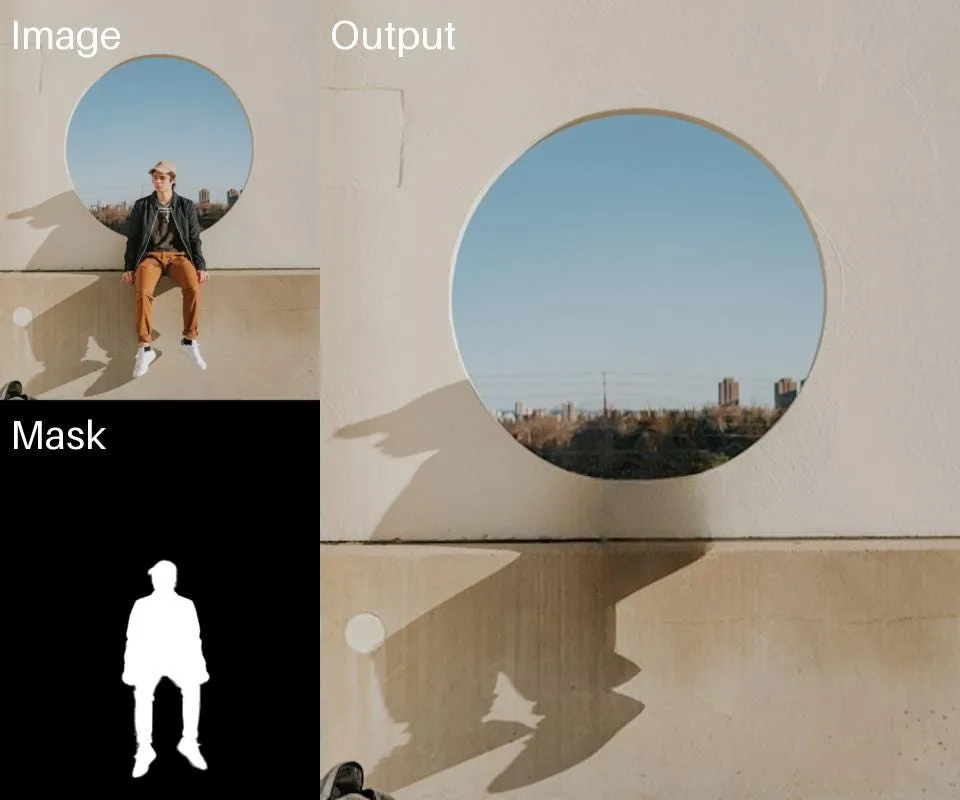
How to use LaMA with onnxruntime-web (JavaScript)
All the model loading and processing is done in a webworker to prevent the UI from freezing.
We try to instantiate a runtime session first with webgpu if the browser supports it and fall back to CPU if not.
async getORTSession() {
  if (!this.modelSession) {
    // for (let ep of ["cpu"]) {
    for (let ep of ["webgpu", "cpu"]) {
      try {
        this.modelSession = await ort.InferenceSession.create(this.modelBuffer, { executionProviders: [ep]})
        this.modelEp = ep
        break
      }
      catch (e) { console.error(e); continue }
    }
  }
  return [this.modelSession, this.modelEp]
}
modelBuffer holds the lama_fp32.onnx , in the browser implementation we download the model file from HuggingFace (208 MB) and store it locally.
Before we pass image and mask to the model we need to preprocess them, ie. pad, resize to 512x512px and convert to an ORT tensor.
In the Next.js app, the image and mask are stored in HTML5 Canvas object. Preprocessing works like this:
const {float32Array: imgArray, shape: imgArrayShape} = canvasToFloat32Array(resizeCanvas(imageCanvas, imageSize))
const {float32Array: maskArray, shape: maskArrayShape} = maskCanvasToFloat32Array(resizeCanvas(maskCanvas, imageSize))
The tensor conversion utility functions:
// inspired by: https://onnxruntime.ai/docs/tutorials/web/classify-images-nextjs-github-template.html
export function canvasToFloat32Array(canvas) {
  const imageData = canvas.getContext("2d").getImageData(0, 0, canvas.width, canvas.height).data
  const shape = [1, 3, canvas.width, canvas.height]

  const [redArray, greenArray, blueArray] = [ [], [], [] ]

  for (let i = 0; i < imageData.length; i += 4) {
    redArray.push(imageData[i]);
    greenArray.push(imageData[i + 1]);
    blueArray.push(imageData[i + 2]);
    // skip data[i + 3] to filter out the alpha channel
  }

  const transposedData = redArray.concat(greenArray).concat(blueArray);

  let i, l = transposedData.length;
  const float32Array = new Float32Array(shape[1] * shape[2] * shape[3]);
  for (i = 0; i < l; i++) {
    float32Array[i] = transposedData[i] / 255.0; // convert to float
  }

  return {float32Array, shape}
}

// same as canvasToFloat32Array but expects a Canvas filled with only black and white
export function maskCanvasToFloat32Array(canvas) {
  const imageData = canvas.getContext("2d").getImageData(0, 0, canvas.width, canvas.height).data
  const shape = [1, 1, canvas.width, canvas.height]

  const float32Array = new Float32Array(shape[1] * shape[2] * shape[3]);

  let f=0, rgb
  for (let i = 0; i < imageData.length; i += 4) {
    rgb = imageData[i] + imageData[i+1] + imageData[i+2]
    float32Array[f++] = rgb>0 ? 1.0 : 0.0
  }

  return {float32Array, shape}
}
With the inputs prepared, calling the model is straightforward:
const [session, device] = await this.getORTSession()
const results = await session.run({
  image: imageTensor,
  mask: maskTensor,
});
The model output in results is again an ORT tensor and has to be converted back to a canvas (see code) and it’s done!
Wrap-Up
By running LaMa client-side, we eliminate the need for cloud processing, reduce latency, and keep your data where it belongs.
- Privacy: No images leave your device.
- Cost: No need for GPU cloud providers. Run powerful models on your own device.
- Speed: No round trips to a server; everything happens locally.
- Accessibility: Works on modern browsers, no installation required.
The most interesting part of the Next.js app is likely how it interfaces with the model — check out lama.js for the details. The full source is available on GitHub, and you can try the live demo at next-lama.vercel.app.